n8n Google Drive AI Document Processing: Summarize and Extract Data Automatically
Build an n8n workflow that watches a Google Drive folder, extracts text from new documents, and processes them with an AI agent for summaries and structured data.
AI-drafted, reviewed by Muhammad Qasim Hammad on July 19, 2026. See our AI disclosure.
Table of contents
Somebody drops a contract, an invoice, or a research report into a shared Google Drive folder and then posts in Slack asking what it says. A teammate opens it, skims 12 pages, and writes a two-sentence summary that misses the payment terms. An n8n workflow watches your Google Drive folder, extracts text from new documents, runs them through an AI agent for summarization and data extraction, and posts the structured results before anyone asks.
This guide builds the pipeline: trigger on new file, extract text, process with an AI agent, and route the output. If you are already using n8n for workflow automation and have a team that drops documents into Drive faster than anyone can read them, this is the build.
What does an AI document processing workflow look like?#
The workflow has four stages: detect a new file in Google Drive, extract its text content, process the text with an AI agent that returns structured output, and route the results to the right destination. The AI agent handles the work that used to require someone to read the entire document: summarization, key-term extraction, and structured data capture.
The trigger watches a specific Google Drive folder for new or updated files. When a file appears, the workflow downloads it and feeds it to a text extraction step. For Google Docs, the Google Drive node exports as plain text directly. For PDFs and DOCX files, a conversion step pulls the text out. The extracted text then goes to an AI Agent node that returns a structured JSON summary based on your schema.
The routing step decides what happens with the results. Contracts get tagged and stored in a database with extracted dates and parties. Invoices get their line items parsed and sent to your accounting sheet. Research reports get summarized and posted to a Slack channel. The document type determines the branch, and the AI agent classifies the type as part of its output.
| Stage | Purpose | Key nodes |
|---|---|---|
| Detect | Watch for new files in a Drive folder | Google Drive Trigger |
| Extract | Pull text from PDF, DOCX, or Google Doc | Google Drive download + Code |
| Process | Summarize, classify, extract structured data | AI Agent + Code |
| Route | Send results to Slack, Sheets, or database | IF + destination nodes |
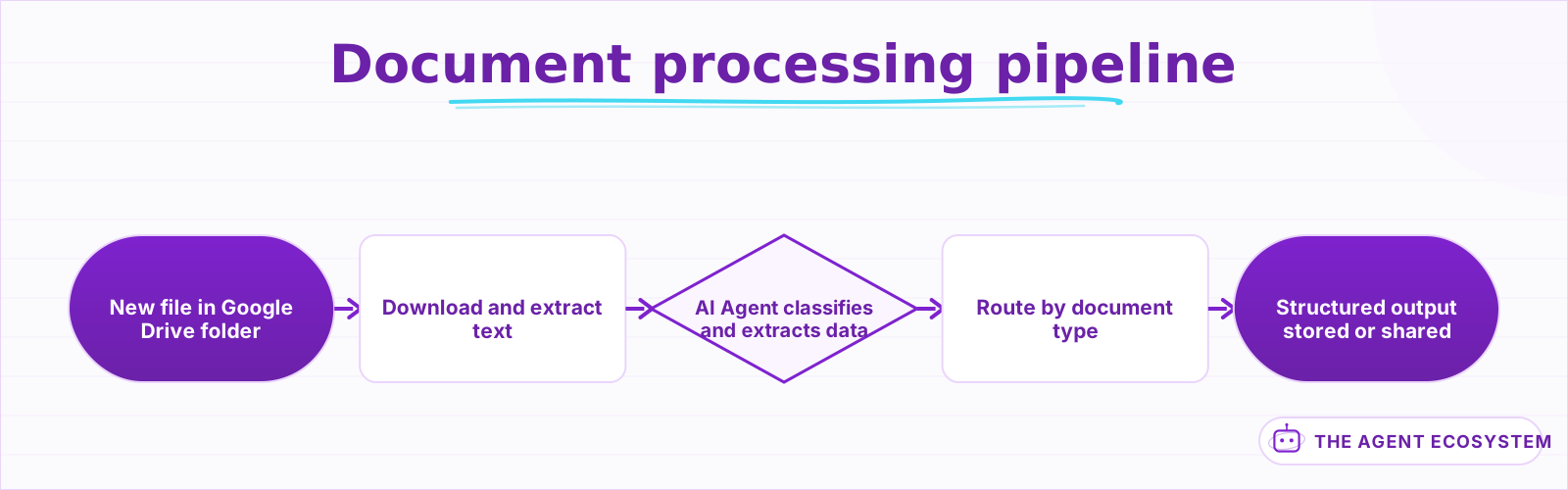 A new file lands in Drive, gets its text extracted, processed by an AI agent, and the structured results route to the right destination.
How do you extract text from documents in n8n?#
Use the Google Drive node to download the file, then branch by file type to extract text. Google Docs export directly as plain text via the Drive API. PDFs and DOCX files need a Code node or an HTTP Request to a conversion service. The extracted text feeds into the AI agent as a single string.
For Google Docs, the Google Drive node supports an "Export" operation that converts the document to plain text in a single call. Set the MIME type to text/plain and the node returns the full document content as a string. No parsing, no libraries, no external service.
For PDFs, the approach depends on whether the PDF is text-based or scanned. Text-based PDFs can be parsed with a Code node using a lightweight library, or you can call an external extraction API via HTTP Request. For production use, a hosted service like a PDF-to-text API keeps the workflow simple and handles edge cases (tables, columns, headers) that a basic parser misses.
For DOCX files, an HTTP Request to a conversion endpoint or a Code node with a DOCX parsing library extracts the text. The key is keeping the extraction step stateless: file in, text out, no temporary storage.
const binary = $input.item.binary;
const buffer = Buffer.from(binary.data.data, 'base64');
const text = buffer.toString('utf-8');
return [{ json: { text: text.slice(0, 30000) } }];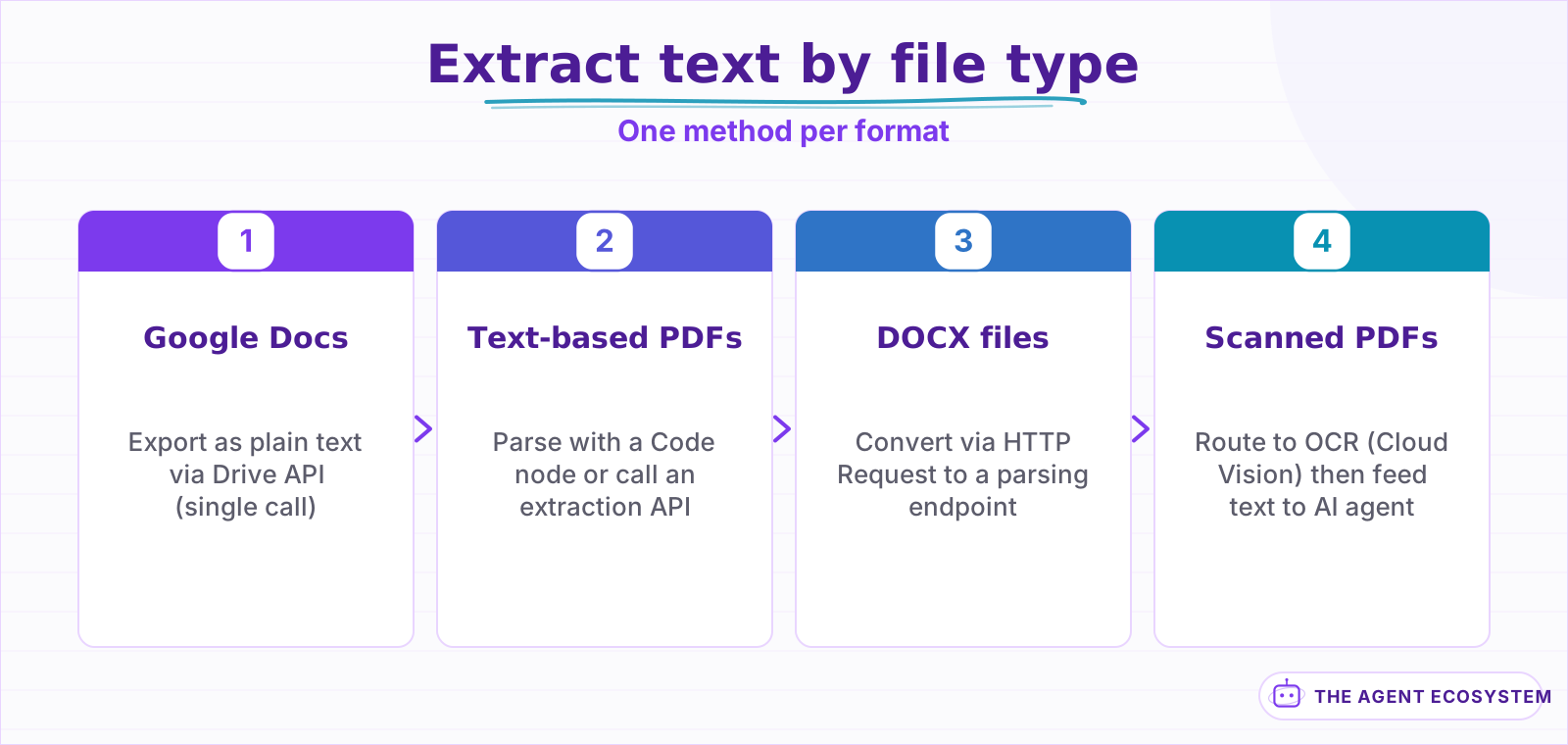 Each file type needs a different extraction method. Google Docs are the simplest; scanned PDFs need OCR as a fallback.
How does an AI agent process document content?#
Feed the extracted text into an AI Agent node with a system prompt that defines the document types you handle, the output schema for each type, and fallback instructions for unrecognized formats. The agent classifies the document, extracts the fields that matter for that type, and returns structured JSON your downstream nodes can consume without further parsing.
The system prompt is the backbone. A working example for a team that processes contracts, invoices, and reports:
You are a document processing assistant. First classify this document as one of: contract, invoice, report, or other. Then extract structured data based on the type. For contracts: extract parties, effective_date, expiration_date, and key_terms (up to 5). For invoices: extract vendor, invoice_number, line_items (name, quantity, amount), and total. For reports: extract title, summary (3-5 sentences), and key_findings (up to 5 bullet points). Return valid JSON with keys "documentType" and "data".
The classification-then-extraction pattern means one agent handles multiple document types without separate workflows. When your team starts dropping a fourth document type into the folder, you add it to the prompt and the output schema rather than building a new workflow from scratch.
For documents longer than the model's context window, split the text into sections and process each section separately. A Code node chunks the text by paragraph or heading, and a Loop node sends each chunk to the agent. A final Code node merges the per-chunk results into a single summary. This adds latency but handles 100-page documents that would otherwise get truncated.
Handle the agent's output with a Structured Output Parser or a Code node with try-catch. Validate that documentType is one of your expected values. If the agent returns "other" or an unrecognized type, route the document to a manual review queue instead of guessing which extraction schema to apply.
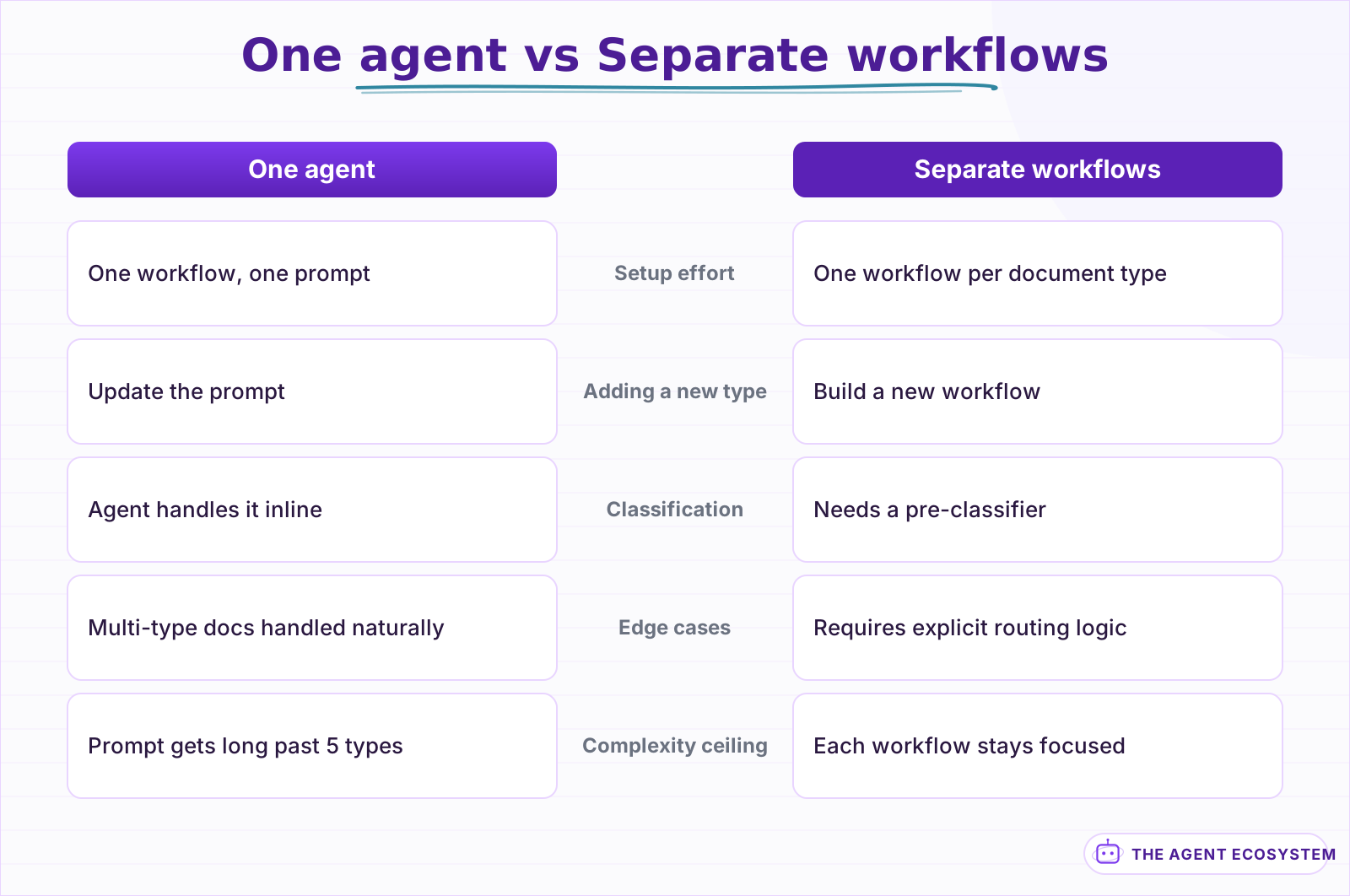 One agent with a multi-type prompt handles the common case. Separate workflows make sense only when extraction logic diverges significantly.
How do you route processed documents to the right destination?#
Add a Switch node after the AI agent that branches on the documentType field. Each branch sends extracted data to its destination: contracts to a database, invoices to a Google Sheet, reports to Slack, and unclassified documents to a review queue. Routing is simple because the AI agent already handled classification.
The routing branches look like this:
- Contracts: Write the extracted parties, dates, and key terms to a Notion database or Airtable base. Include the Google Drive file link so the team can open the original. Set a reminder for 30 days before the expiration date using a scheduled workflow.
- Invoices: Append the line items and total to a Google Sheet that feeds your accounting pipeline. Tag the row with the vendor name and invoice date for filtering.
- Reports: Post a formatted summary to a Slack channel. Include the title, key findings as a bulleted list, and a link to the full document in Drive. Keep the Slack message under 3,000 characters.
- Unclassified: Send a Slack notification that a document needs manual review. Attach the file name and the raw AI output so the reviewer can check whether the classification was ambiguous or the document type was genuinely new.
For each branch, add the Google Drive file URL to the output so every downstream record links back to the source document. This sounds obvious but gets forgotten, and a spreadsheet row without a link to the original document is a dead end when someone needs to verify the extracted data.
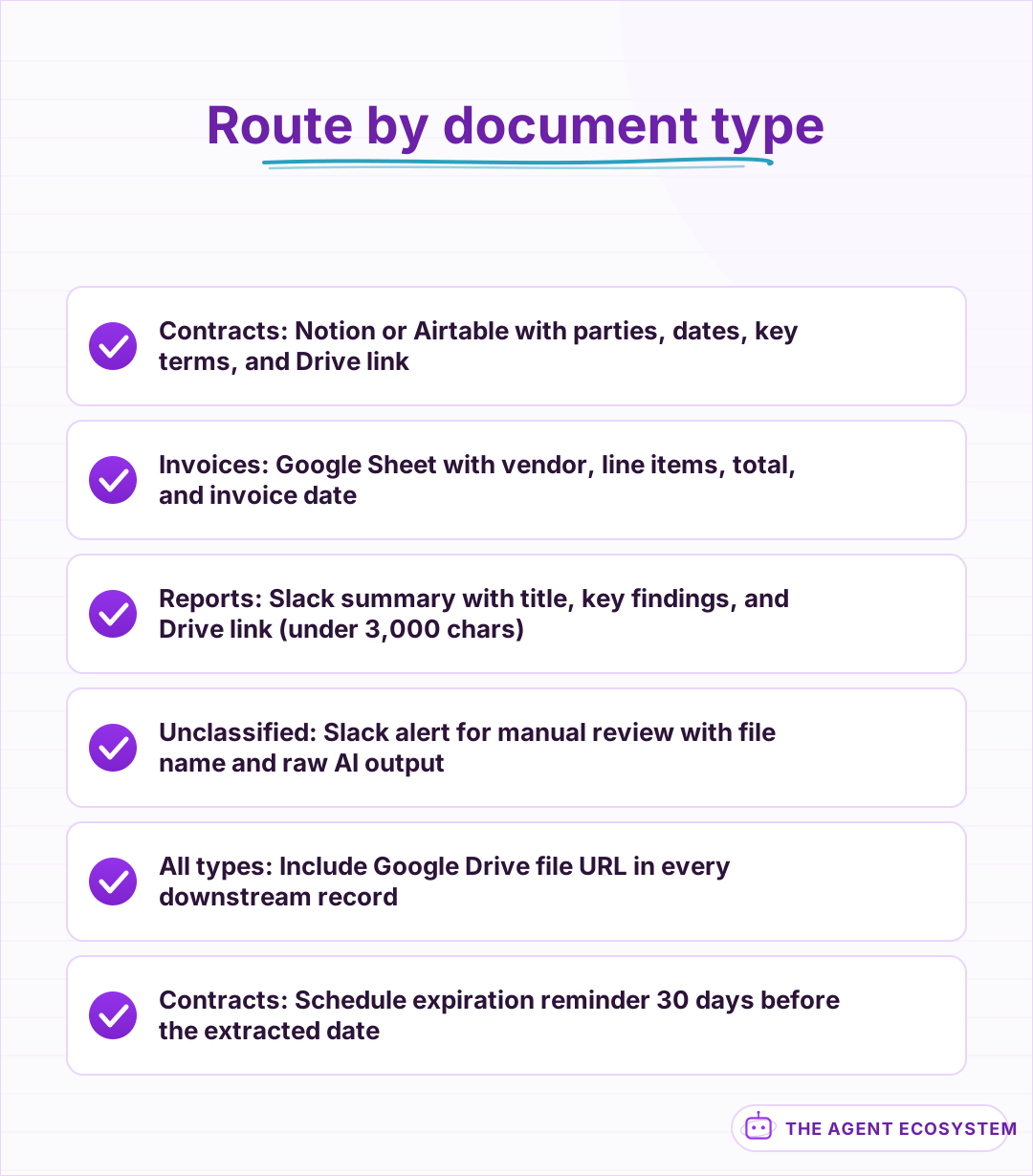 Each document type goes to a specific destination with a link back to the original file in Drive.
What are the common failure points and how do you handle them?#
Three issues break document processing workflows consistently: scanned PDFs with no extractable text, documents that exceed the model's context window, and the AI agent misclassifying a document type. Each one has a fix that keeps the pipeline running without losing documents.
Scanned PDFs return empty text from standard extraction. A Code node after the extraction step checks whether the output is empty or under 50 characters. If it is, route the document to an OCR branch: an HTTP Request to Google Cloud Vision or a dedicated OCR API that reads the image layer and returns text. The OCR output feeds back into the same AI agent. This adds 5 to 15 seconds per document but catches every scan.
Documents longer than the model's context window get silently truncated if you send the full text. The 30,000-character cap protects against runaway token costs, but it also means the agent misses content past that point. For contracts and legal documents where the critical clause sits on page 47, a chunking strategy is non-negotiable. Split by heading or section, process each chunk, and merge the results. Log the chunk count so you know when a document was processed in pieces versus as a whole.
Misclassification happens when documents blend types: a report that includes an invoice table, or a contract with an embedded scope-of-work spec. The AI agent picks one type and misses the other. Mitigate this by allowing the agent to return multiple types in its classification. Change documentType from a string to an array, and route the document to all matching branches. A contract-plus-invoice gets both its dates extracted and its line items logged.
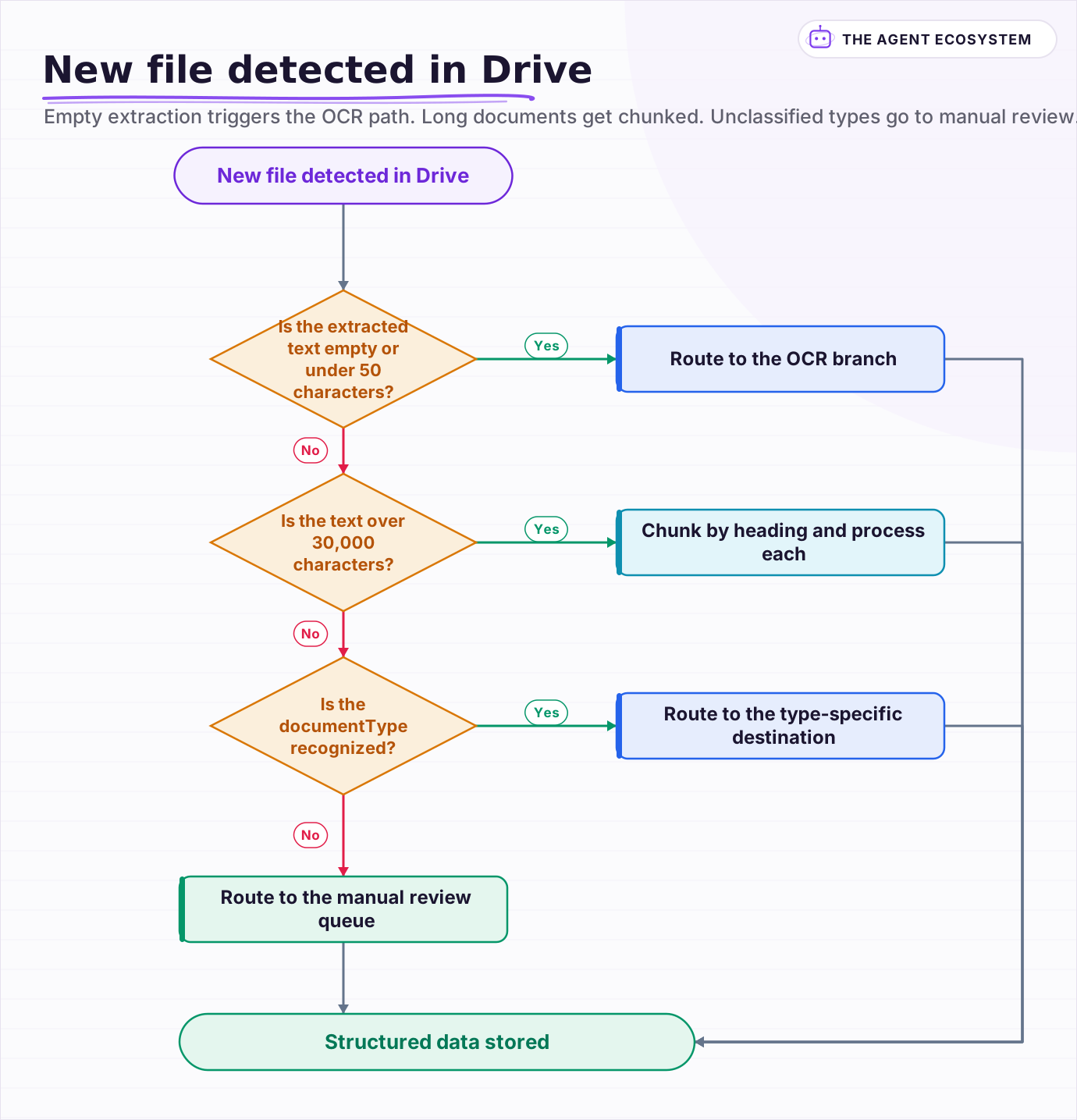 Empty extraction triggers the OCR path. Long documents get chunked. Unclassified types go to manual review.
Frequently asked questions
Can this workflow handle scanned PDFs?
How long does it take to process a document?
What file types does this workflow support?
How do I prevent duplicate processing when a file is edited?
Can the AI agent extract data from tables inside documents?
Sources
Primary references and vendor documentation used while drafting and reviewing this article.
Written by

Muhammad Qasim Hammad is an AI agent and automation expert and the founder of Cart Gaze LLC (cartgaze.com). He builds product for the love of it: when an idea lands, a working prototype is usually running within hours, built with the same AI agents and automations he sells. He puts his own output at roughly 20× what it was before agents, and the Agentic OS behind this site is the working proof, documented in public with the tools he actually ran and what they really cost.
AI & Automation Services
Want a pipeline like this running in your business?
I'm Qasim — I design and ship AI agents and n8n automations for solo operators and small teams. Tell me what's eating your team's week, and I'll scope a fix.
Related reading
Build an AI Document-Extraction Agent in n8n (Invoices, Receipts & Emails)
Build an n8n AI document extraction agent that reads invoices, receipts, and emails, then writes clean structured data to a sheet. Uses Claude and the Information Extractor node. Costs $1.55 per 1,000 documents on Haiku 4.5.

n8n AI Feedback Analysis: Classify Sentiment and Route Urgent Complaints Automatically
Customer feedback arrives from five places and nobody reads most of it. An n8n workflow with an AI agent classifies every piece by sentiment and theme, routes urgent complaints immediately, and builds a weekly digest your product team can act on.
Summarize Long Documents in n8n with the AI Summarization Chain
Use the n8n Summarization Chain node to automatically condense transcripts, PDFs, and long articles into one-paragraph summaries. Costs $0.85 per 100 documents on Claude Haiku 4.5, with three method options for any document length.
n8n Slack Bot + AI Agent: Answer Team Questions from Your Docs
Your team asks the same question in Slack every week. Wire a Slack Trigger to an n8n AI agent with a vector store and the bot answers from your own documents, in the thread, in seconds.
n8n AI Automation Ideas: 8 Agent Workflows Worth Building (2026)
Finished the n8n AI tutorial and wondering what to actually build? These 8 n8n AI automation ideas come with the exact nodes, the honest Chain-vs-Agent call, and the right Claude model for each job.
OCR Turns a Page Into Text. A VLM Just Reads It.
OCR-then-parse converts a page to text outside the model, so a language model only ever sees what the OCR engine decided to keep. A vision-language model reads the page itself, pixels and text together, which is why it can answer a question about a specific box on the page while