How to Make Your n8n Workflows Reliable: Error Handling, Retries, and Alerts
Three layers that stop silent failures from costing you clients
Updated September 4, 2026 — Added a hands-on section on routing error alerts to Slack, email, or Telegram.
AI-drafted, reviewed by Muhammad Qasim Hammad on June 12, 2026. See our AI disclosure.
Table of contents
- Why do n8n workflows fail silently?
- What are the three layers of n8n error handling?
- How do you retry a flaky node automatically?
- How do you handle a node's error without stopping the workflow?
- How do you get alerted when any workflow fails?
- What data does the Error Trigger give you?
- How do you send n8n error alerts to Slack or email?
- What is your reliability checklist for a new workflow?
A workflow fails at 3am. n8n silently stops it. You find out four days later when a client emails asking where their onboarding data is. Proper n8n error handling means every failure alerts you and flaky steps retry themselves before they ever become your problem.
That is not how n8n ships by default. A failed execution just stops. No retry. No notification. No email. The run sits in your execution log, but unless you check that log every morning, you will never see it.
This guide covers each layer in order of how fast you can ship it, starting with the highest-impact one.
Why do n8n workflows fail silently?#
n8n has no built-in error notification layer. When a node throws an error, execution stops at that node and n8n marks the run as failed. No retry attempt, no alert, no webhook ping. You only know something broke if you open the executions panel and spot the red mark.
I learned this the hard way. I run n8n self-hosted on a small VPS (the setup is documented in this self-host guide). A lead-capture workflow hit an API rate limit overnight, stopped mid-run, and I found out only when a prospect emailed asking why nobody had followed up. The automation had been dead for 16 hours. That one missed lead made error handling non-negotiable for every workflow I ship now.
The gap exists because n8n is a workflow tool, not a monitoring platform. Reliability is your job to add.
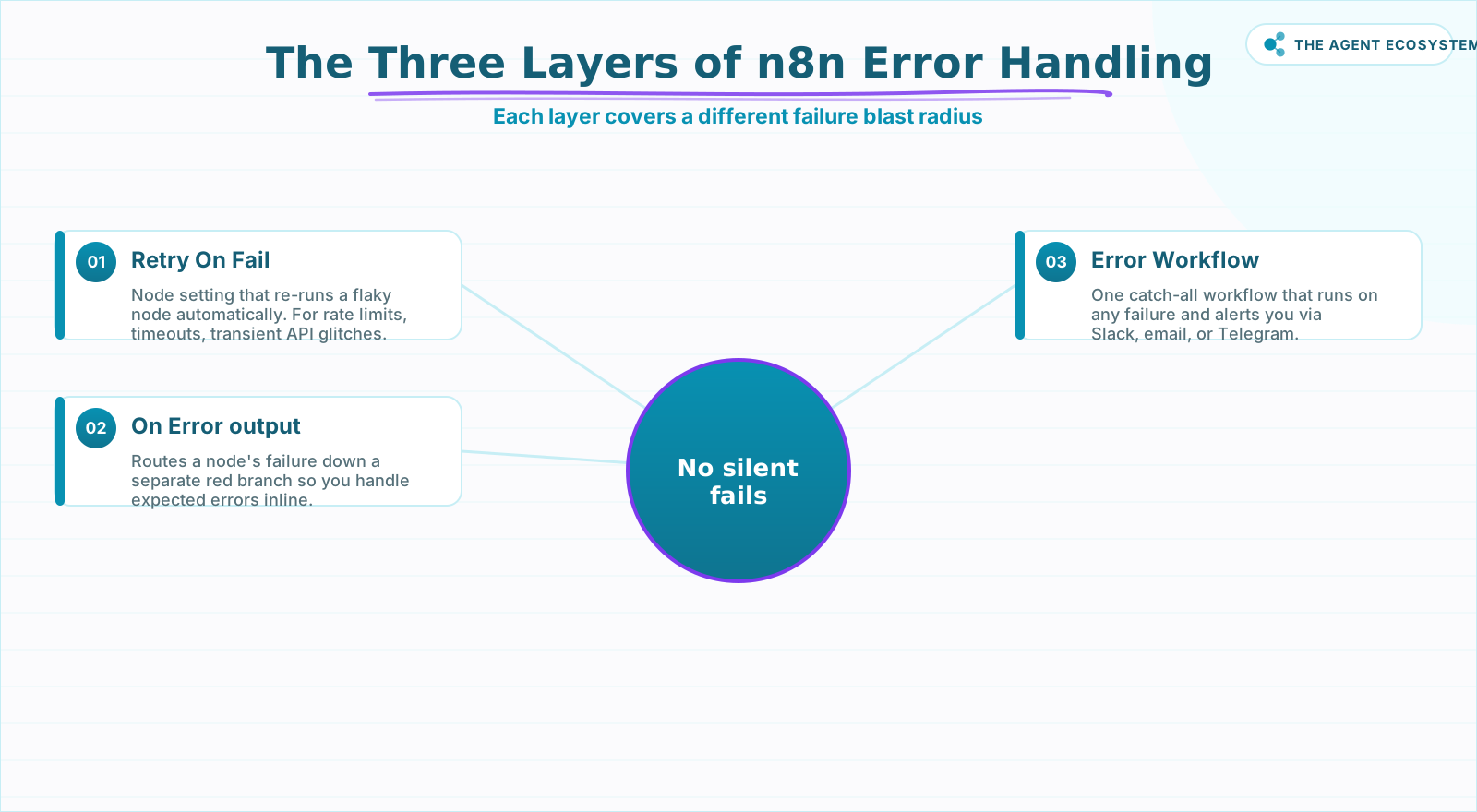 Layer all three so no n8n workflow fails silently.
What are the three layers of n8n error handling?#
The three layers together cover every failure mode: transient glitches that fix themselves, predictable errors you can plan for, and total unexpected crashes. Each layer handles a different blast radius, and they stack on top of each other, so a workflow that matters should use all three rather than relying on any single one.
| Layer | What it does | Where you set it | Use it for |
|---|---|---|---|
| Retry On Fail | Re-runs a failing node automatically | Node settings tab | Flaky APIs, rate limits, timeouts |
| On Error (error output) | Sends a node's failure down a separate branch | Node settings tab | Failures you expect and can handle inline |
| Error Workflow | Runs a catch-all workflow on any failure | Workflow settings | Alerts and logging for everything |
Retries handle the failure that fixes itself. Error outputs handle the failure you expected. The Error Workflow handles the failure you did not see coming. You want all three on any workflow that matters.
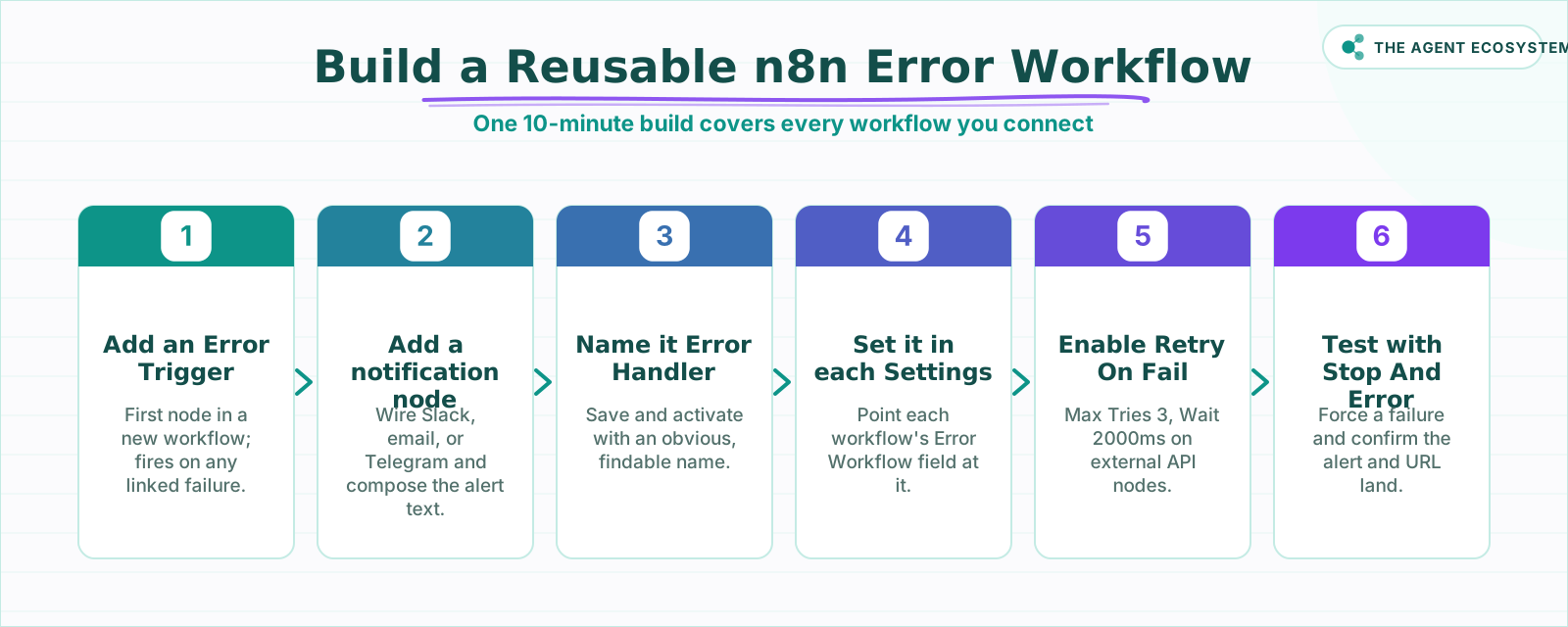 Build it once; wire it to every workflow you care about.
How do you retry a flaky node automatically?#
Open the node, go to its Settings tab, and turn on Retry On Fail. Set Max Tries to 3 and Wait Between Tries to 2000 ms as a starting point for most external API calls. If the node still fails after all retries, the execution fails and your Error Workflow fires.
Rate limits from services like OpenAI or a CRM API are transient by nature. A Wait Between Tries value of 1000 to 5000 milliseconds covers most rate-limit windows. Retries buy you resilience against noise; they do not swallow genuine errors. AI nodes are the exception worth knowing about: a model call can fail on a rate limit or come back as malformed JSON, and the fix there is a fallback model rather than more retries. n8n AI error handling covers that case.
How do you handle a node's error without stopping the workflow?#
In the node's Settings tab, the On Error control has three options: Stop Workflow (the default, which halts execution and triggers the Error Workflow), Continue (the workflow proceeds as if nothing happened, ignoring the error entirely), and Continue (using error output) (the workflow continues down a separate error branch so you can handle the failure inline).
The third option is the one you actually want for predictable failures. Wire that red error output to a Set node or a notification node to log the issue, send a partial alert, or substitute a fallback value without stopping the whole run. I use this pattern in my Claude email triage workflow to catch malformed inputs without killing the entire queue.
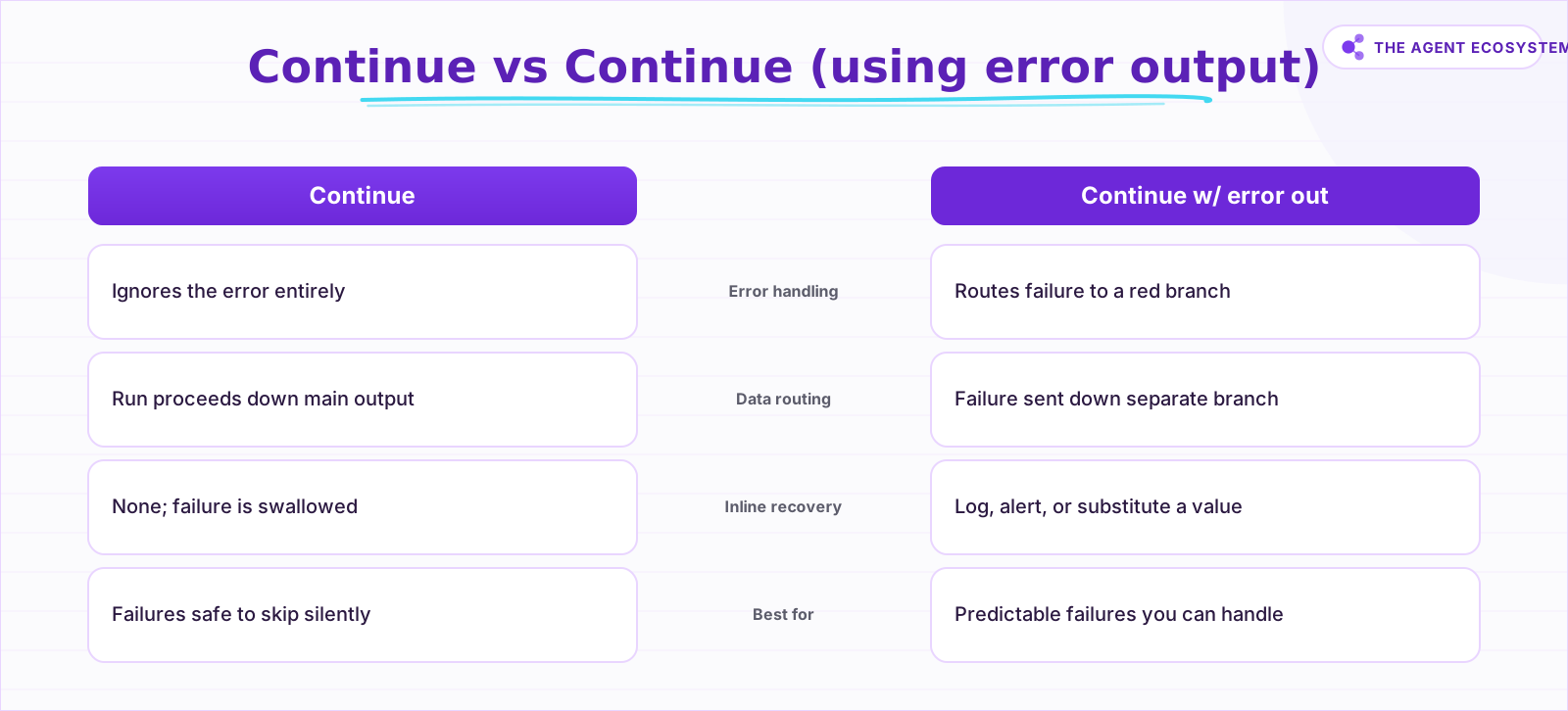 Pick the right On Error setting for each node's risk.
The old name for this toggle was "Continue On Fail," which only had two states. The current On Error control with three explicit options gives you much more control.
How do you get alerted when any workflow fails?#
Build one workflow that starts with an Error Trigger node, add a Slack or email node to send the alert, and set that workflow as the Error Workflow in each important workflow's Settings. One 10-minute build covers every workflow you connect it to.
Create a new workflow, drop in an Error Trigger node as the first node, and wire it to a notification node of your choice. Save and activate it with a name like "Error Handler." Then open each workflow you want to protect, go to Settings, and point the Error Workflow field at it. A copy-paste version of exactly this handler is in the n8n error workflow template.
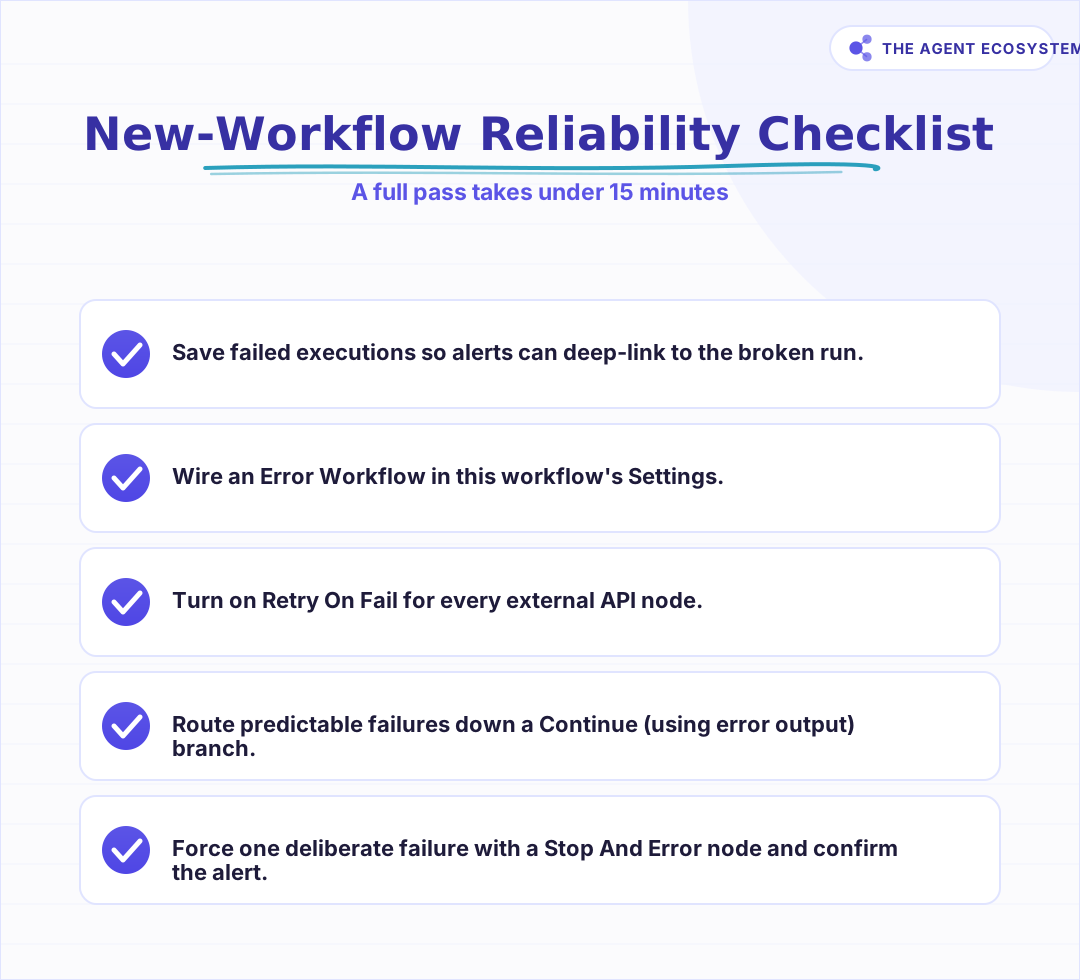 Run this pass before any workflow touches client data.
According to the n8n error handling docs, one error workflow can serve as the Error Workflow for many different workflows. You build the alert once and reuse it everywhere. For a solo operator running multiple automations, that is the right ratio: one maintenance burden, full coverage.
You can also trigger the Error Workflow intentionally using a Stop And Error node. Drop one into any workflow and run it to simulate a failure. This is how you confirm your alert actually arrives before you trust it in production. An untested error workflow is a guess, not a safety net.
What data does the Error Trigger give you?#
The Error Trigger node passes a structured JSON object into your error workflow describing exactly what broke. It includes the workflow name and id, the failed execution's id and url, the error message and stack, the last node that ran, and the run mode. Here is the exact shape, trimmed from the n8n Error Trigger docs:
[
  {
    "execution": {
      "id": "231",
      "url": "https://n8n.yourdomain.com/execution/231",
      "retryOf": "34",
      "error": {
        "message": "Example Error Message",
        "stack": "Stacktrace"
      },
      "lastNodeExecuted": "Node With Error",
      "mode": "manual"
    },
    "workflow": {
      "id": "1",
      "name": "Example Workflow"
    }
  }
]
A useful alert message assembles several of these fields into one readable string:
Workflow "{{ $json.workflow.name }}" failed at node "{{ $json.execution.lastNodeExecuted }}".
Error: {{ $json.execution.error.message }}
View run: {{ $json.execution.url }}
That gives you the workflow name, the exact node that broke, the error message, and a direct link to the failed execution. One glance and you know what broke and where.
Two other fields have conditional presence. execution.retryOf only appears when the run is a retry of a previously failed execution. execution.id and execution.url are absent if the error occurred in the trigger node of the main workflow itself. Build your alert template around the fields that are always present (workflow.name, execution.lastNodeExecuted, execution.error.message) and treat the URL as a bonus that requires saved executions.
How do you send n8n error alerts to Slack or email?#
Wire your channel of choice to the Error Trigger: a Slack node posts the failure into a team channel, or a Send Email node drops it in your inbox. Both read the same error fields, so you build the message once and swap only the delivery node. Test it before you rely on it.
For Slack, add the Slack node (or an HTTP Request node pointed at an Incoming Webhook if you would rather skip the full app auth). Set the operation to Send a Message, choose a dedicated #alerts channel so failures stay out of your main feed, and paste the alert template from earlier into the message field. Every failed run then lands in Slack within a second or two, carrying the workflow name, the broken node, and a link straight to the execution.
For email, use the Send Email node with your SMTP credentials, or the Gmail node if that account is already connected. Put the workflow name in the subject line — n8n failure: {{ $json.workflow.name }} — so a crowded inbox still surfaces the alert at a glance, and reuse the same template in the body. Email suits a solo operator who wants a durable, searchable record; Slack suits a team that needs eyes on the failure in real time.
| Channel | Best for | Node to use |
|---|---|---|
| Slack | A team that needs real-time eyes on failures | Slack node, or an Incoming Webhook |
| A solo operator who wants a searchable record | Send Email (SMTP) or Gmail node | |
| Telegram / Discord | A personal phone ping off a self-hosted box | Telegram or Discord node |
Telegram and Discord follow the same pattern: drop their node after the Error Trigger and reuse the template. Resist wiring up every channel at once — one reliable alert you actually read beats three you learn to ignore. An unattended AI lead-generation agent is exactly the kind of workflow where a single Slack alert is the difference between a quick fix and a client noticing the automation died days ago.
What is your reliability checklist for a new workflow?#
Before any workflow goes live, run through five checks: save failed executions, wire an Error Workflow, add Retry On Fail to every external node, route predictable failures down an error output, and test by forcing one deliberate failure. That full pass takes under 15 minutes on a typical workflow.
This matters most for workflows that touch clients directly: lead capture, invoice generation, client onboarding sequences. The full automation stack breakdown shows how these hardening steps fit into a larger architecture. Reliability is not glamorous work, but it separates automations you can trust from automations you have to babysit.
Where to go from here: set up your Error Handler workflow today using the steps above, then go through each important workflow and set it in Settings. After that, audit your HTTP Request nodes and turn on Retry On Fail for each one. Those two moves take less than 30 minutes total and cover 90% of the failure surface for most solo operator setups.
Frequently asked questions
How do I get notified when an n8n workflow fails?
What is the Error Trigger node in n8n?
How do I retry a failed node in n8n?
What is the difference between Continue and Continue (using error output) in n8n?
Does n8n save failed executions by default?
How do I test my n8n error workflow?
How do I send n8n error alerts to Slack?
Can n8n send email alerts when a workflow fails?
Sources
Primary references and vendor documentation used while drafting and reviewing this article.
Written by

Muhammad Qasim Hammad is an AI agent and automation expert and the founder of Cart Gaze LLC (cartgaze.com). He builds product for the love of it: when an idea lands, a working prototype is usually running within hours, built with the same AI agents and automations he sells. He puts his own output at roughly 20× what it was before agents, and the Agentic OS behind this site is the working proof, documented in public with the tools he actually ran and what they really cost.
AI & Automation Services
Want a pipeline like this running in your business?
I'm Qasim — I design and ship AI agents and n8n automations for solo operators and small teams. Tell me what's eating your team's week, and I'll scope a fix.
Related reading
n8n Error Workflow Template: A Copy-Paste Error Handler
An n8n error workflow template is one reusable flow, built on the Error Trigger node, that you set as your Error workflow so every failure is captured, formatted, and alerted from one place. Here is how to build it, wire it, and set it as your handler.

Keep n8n AI Workflows From Breaking: Retry, Fallback Models, and Error Branches
Your n8n AI workflow passed every test, then a 429 killed a whole overnight batch with no alert. This guide wires 3 defenses: Retry On Fail, a fallback model, and a global Error Workflow.
Multi-Model Fallback in n8n: Stay Up When Claude Is Down or Over Budget
The model call is the least reliable step in your n8n workflow. Build a multi model fallback ladder (primary, cheaper, local, human) plus a budget guard so a 429, a 529 overload, or a blown budget degrades gracefully instead of killing the run.
How to Manage n8n Workflows Programmatically With the REST API
Once you are running more than a handful of n8n workflows, clicking through the editor stops being a reliable way to know what state everything is actually in. Here is how to use n8n's own REST API to monitor executions, catch a silently failing workflow, and deploy a change
n8n Schedule Trigger: Cron, Intervals, and Overlaps
Your scheduled n8n workflow ran an hour off, stacked runs on top of each other, or silently never fired. All three are fixable once you know where n8n looks for cron, timezone, and concurrency. Here is the honest, docs-verified recipe.
n8n Webhooks vs Polling: Which Trigger to Use, and Why
Should an n8n workflow fire the instant an event happens (a webhook, push) or check on a timer (polling, pull)? The wrong pick means missed events or wasted executions. Here is the decision framework plus how to wire each trigger.