Build a Claude-Powered Email Triage Agent with n8n
Stop reading every email. Let Claude decide what needs you, and what doesn't.
AI-drafted, reviewed by Muhammad Qasim Hammad on June 7, 2026. See our AI disclosure.
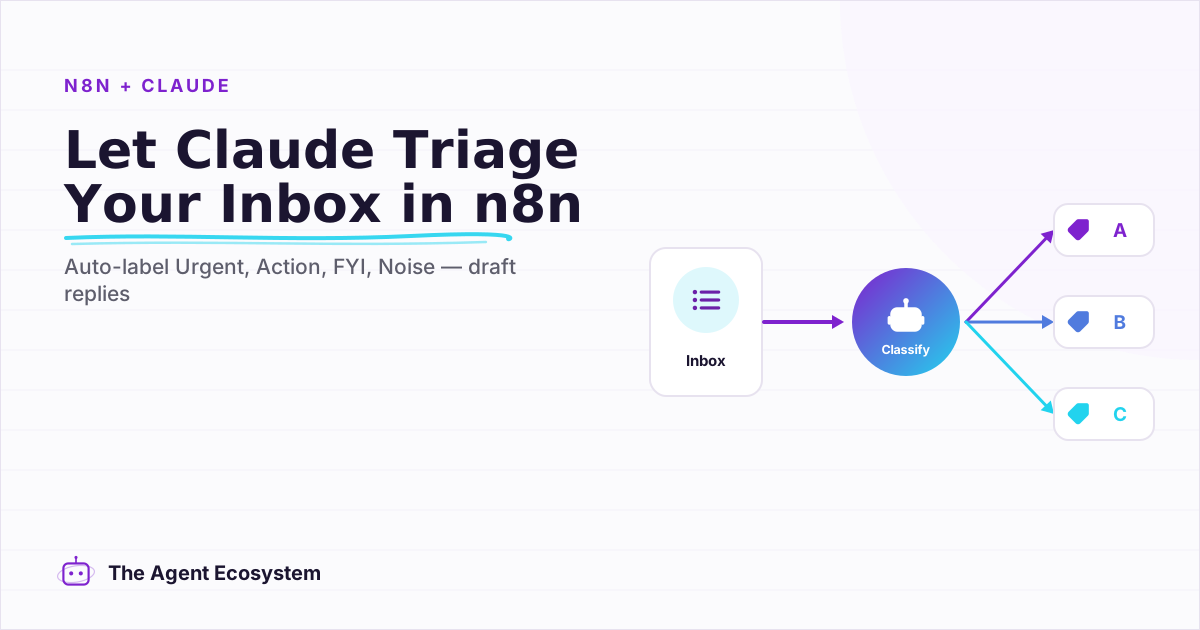
Table of contents
- What Does a Claude Email Triage Agent Actually Do?
- What You Need Before You Start
- How Do You Connect n8n to the Claude API?
- How to Build the Triage Workflow in Seven Steps
- Step 1, Gmail Trigger
- Step 2, Clean the Email Fields
- Step 3, Call Claude
- Step 4, Parse the Response
- Step 5, Route by Label
- Step 6, Log to Google Sheets
- Step 7, Activate and Watch
- How Solopreneurs Get This Wrong
- How to Extend the Triage Agent
- Where to Go From Here
A Claude email triage agent in n8n reads each incoming Gmail message, classifies it into Urgent, Action Needed, FYI, or Noise, applies a label, logs the decision, and drafts replies only for messages that need action. It should not send mail automatically. The safe build is seven nodes: Gmail trigger, field cleanup, Claude HTTP Request, JSON parse, Switch router, Gmail label writer, and audit-log writer. Before activation, test it on 15-20 real emails and count mislabels; that gives you a better signal than a generic AI summary. For solopreneurs, the edge is not novelty — it is opening the inbox with decisions already sorted while every outbound message still waits for human approval.
The problem is still worth measuring. McKinsey has estimated that knowledge workers spend 28% of the workweek managing email; for your setup, measure your own baseline before claiming a weekly time-saving number. I use the workflow below as the email layer inside the broader AI automation stack.
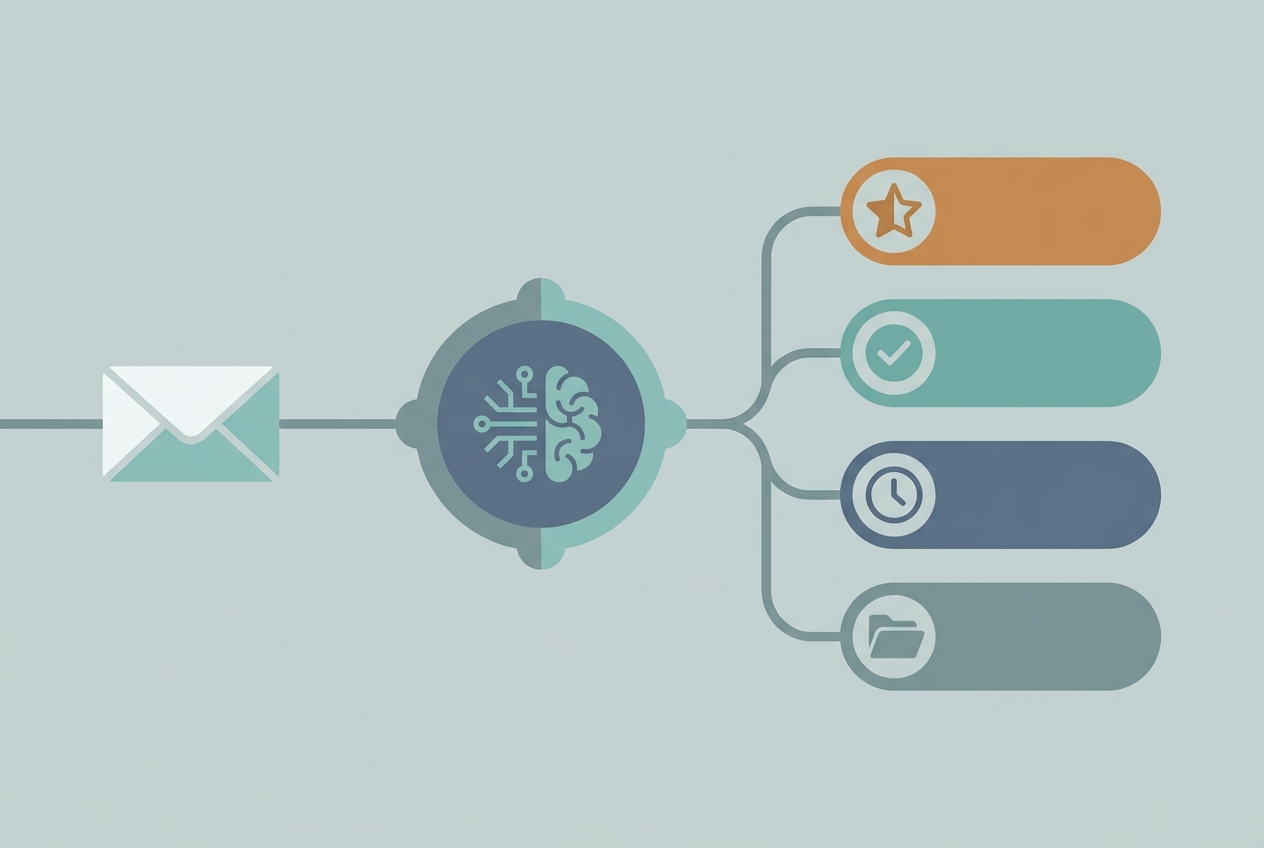 The agent sorts and drafts; you stay the only one who hits send.
What Does a Claude Email Triage Agent Actually Do?#
A Claude email triage agent reads each incoming email and outputs a structured classification plus an optional draft reply. It does not send anything on your behalf, it sorts and prepares, so the only emails you open are the ones worth opening.
The four labels I use are Urgent (needs a reply within the hour), Action Needed (needs a reply today), FYI (read-only, no reply needed), and Noise (newsletters, receipts, automated alerts). Claude assigns one of these per email based on your system prompt criteria.
| Label | What it means | Reply window | What the agent does |
|---|---|---|---|
| Urgent | Needs a reply within the hour or has a deadline today | Within 1 hour | Labels it and drafts a reply |
| Action Needed | Needs a reply today or tomorrow | Same day | Labels it and drafts a reply |
| FYI | Informational, read-only | None | Labels it, no draft |
| Noise | Newsletters, receipts, automated alerts | None | Labels it, no draft |
The entire chain lives inside a single n8n workflow: Gmail trigger → field extraction → Claude API call → label writer → Sheet logger. No code, one external API, zero monthly SaaS fees beyond your n8n and Anthropic usage.
What You Need Before You Start#
You need five things before you build: an n8n instance, an Anthropic API key, a Gmail account connected over OAuth2, a Google Sheet or Supabase table for the audit log, and 15 to 20 real emails saved as test data. None of it costs more than a few cents a day to run.
- n8n (self-hosted or n8n Cloud), the workflow engine. Cloud starts free.
- Anthropic API key, sign up at console.anthropic.com. Claude Haiku is the model to start with.
- Gmail account with OAuth2 credentials connected in n8n.
- Google Sheet or Supabase table, your audit log.
- 15-20 real emails you've already received, saved as test data in n8n.
Claude Haiku is the cheapest Claude tier to evaluate first for classification-style triage. Do not rely on a fixed cost estimate from a blog post: run 50 sample emails, check token usage in Anthropic, then compare that usage against current rates at Anthropic pricing. If you would rather avoid API spend or sending email text to a cloud model, test the same routing prompt on a local model by connecting Ollama to n8n.
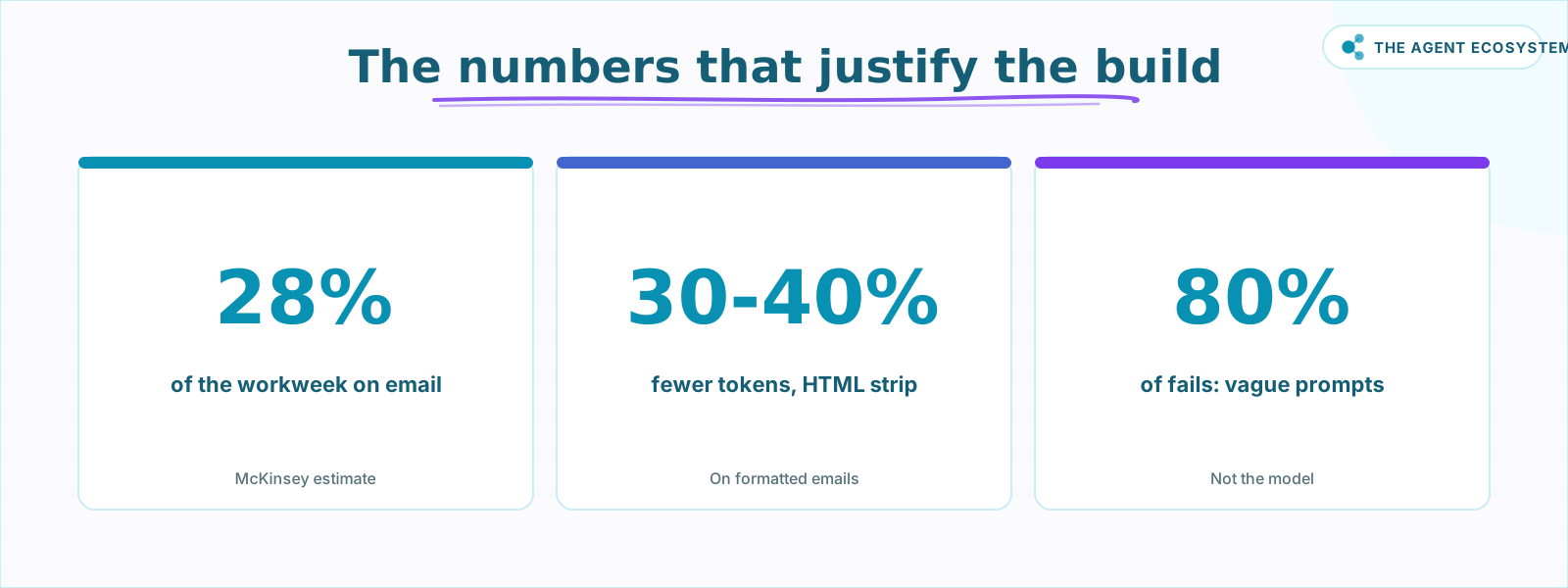 Measure your own baseline first; these are the numbers that justify it.
How Do You Connect n8n to the Claude API?#
n8n has no native Claude node yet, so you connect to the Anthropic API through the generic HTTP Request node. That is actually an advantage: you get full control over the model, the system prompt, and the JSON response format. You configure the body, set three headers, then parse Claude's reply with a short Code node.
Here's the exact request body structure. Paste this into the Body field of your HTTP Request node (set to JSON):
{
  "model": "claude-haiku-4-5",
  "max_tokens": 512,
  "system": "You are an email triage assistant. Classify each email into exactly one of these labels: Urgent, Action Needed, FYI, Noise. Urgent = requires a response within 1 hour or has a deadline today. Action Needed = requires a response today or tomorrow. FYI = informational, no reply needed. Noise = newsletters, receipts, automated alerts, marketing. VIP senders (always Action Needed minimum): @myclient.com, @mybank.com. When uncertain, default to Action Needed. Return a JSON object with keys: label (string), reason (string, max 20 words), draft_reply (string, 2–3 sentences if label is Urgent or Action Needed, else null).",
  "messages": [
    {
      "role": "user",
      "content": "From: {{ $json.sender_email }}\nSubject: {{ $json.subject }}\n\n{{ $json.body_text }}"
    }
  ]
}
Set the Headers as:
x-api-key: your Anthropic API key (stored in n8n credentials)anthropic-version:2023-06-01content-type:application/json
After running this once, Claude's response comes back in $json.content[0].text as a stringified JSON object. Parse it with a Code node:
const raw = $input.first().json.content[0].text;
const parsed = JSON.parse(raw);
return [{ json: parsed }];
Now you have label, reason, and draft_reply as clean fields for downstream nodes.
How to Build the Triage Workflow in Seven Steps#
The whole agent is seven nodes wired in sequence: a Gmail trigger, a Set node to clean the fields, an HTTP Request to Claude, a Code node to parse the reply, a Switch to route by label, a Gmail node to apply the label, and a Google Sheets node to log it. Build it left to right.
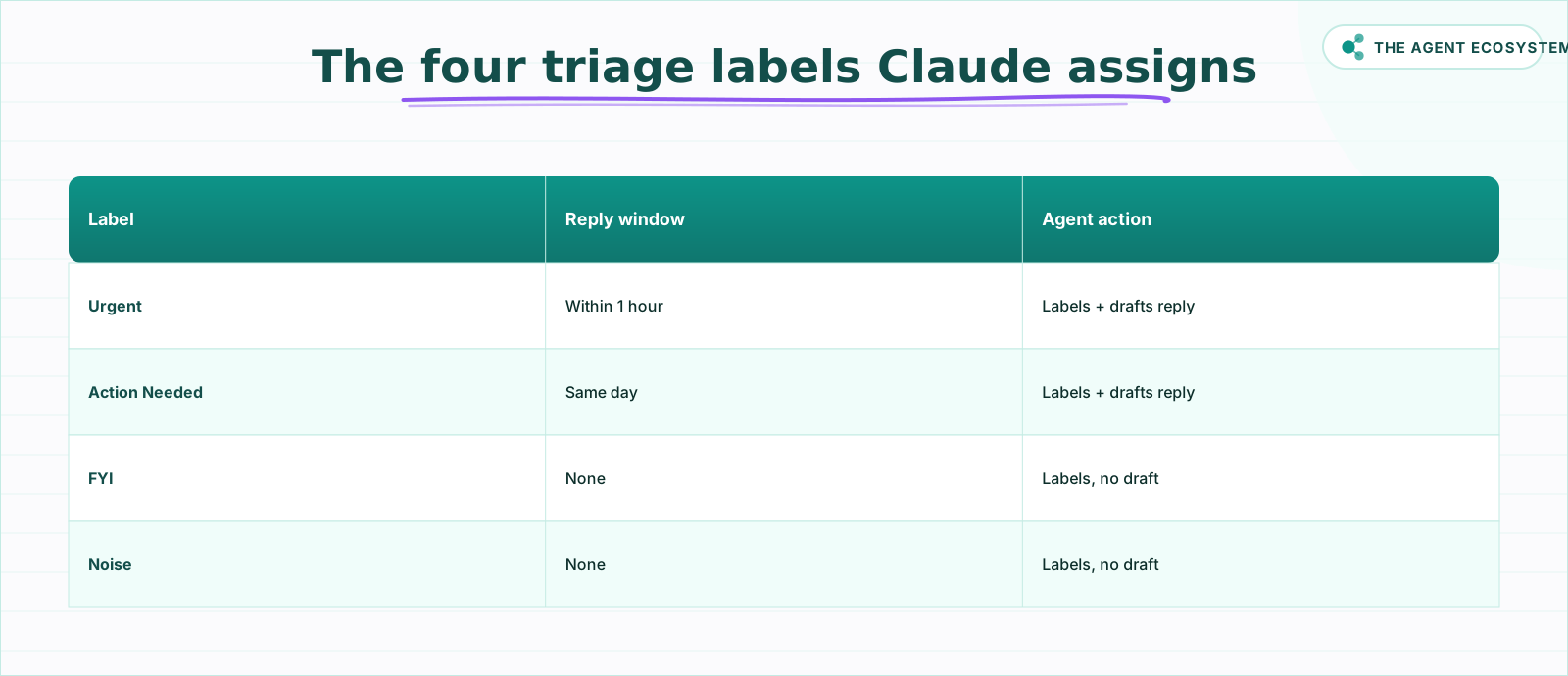 One label per email, set by your system prompt's timing criteria.
Step 1, Gmail Trigger#
Add a Gmail Trigger node. Set Poll Times to every 15 minutes. Under Filters, set Read Status to Unread and Label Names to INBOX. This scope keeps the workflow from reprocessing emails you've already seen.
Step 2, Clean the Email Fields#
Add a Set node. Create these fields:
sender_email→{{ $json.from.value[0].address }}subject→{{ $json.subject }}body_text→{{ $json.text ?? $json.snippet }}received_at→{{ $json.date }}
Stripping HTML from body_text before sending to Claude cuts token usage by 30-40% on formatted emails.
Step 3, Call Claude#
Add the HTTP Request node with the payload above. Name it "Claude Classify". Set Response Format to JSON so n8n parses the outer API envelope automatically.
Step 4, Parse the Response#
Add the Code node from the snippet above. This gives you clean label, reason, and draft_reply fields.
Step 5, Route by Label#
Add a Switch node. Create four output branches on the label field matching Urgent, Action Needed, FYI, and Noise. Wire each branch to its own Gmail node set to Add Label with the matching Gmail label ID.
Create the four labels in Gmail first (Settings → Labels → Create new label). n8n needs the Label ID, not the name, find it by running the Gmail node once in test mode and checking the label list in the output.
Step 6, Log to Google Sheets#
After the Switch node (merge all four branches), add a Google Sheets node set to Append Row. Map: received_at, sender_email, subject, label, reason, draft_reply. This log is your feedback loop for improving the prompt.
Step 7, Activate and Watch#
Toggle the workflow Active. Open the Executions tab in n8n and check it the next morning. Expect 2-5 mislabels in the first batch. Every mislabel I've seen traces back to a vague line in the system prompt, not the model.
How Solopreneurs Get This Wrong#
Most triage agents fail for predictable reasons, and none of them are the model. Four mistakes account for almost every broken build: a vague system prompt, no audit log, running the trigger around the clock, and auto-drafting replies before you trust the labels. Here is how each one bites, and the fix.
Vague system prompts cause 80% of failures. Writing "classify by importance" gives Claude no criteria. The prompt above specifies timing thresholds, VIP senders by domain, and a default fallback. That specificity is what separates a workflow that works from one you abandon after three days.
Not logging the output is the second mistake. Without the Google Sheet audit log, you have no way to spot patterns in mislabels. After running this for two weeks, I found that invoices from one specific client were landing in Noise because the subject line read "Your invoice is ready", identical to automated SaaS receipts. One line added to the system prompt fixed it.
Running the trigger 24/7 is unnecessary and noisy. I limit mine to 7am, 7pm on weekdays using n8n's Schedule settings. Off-hours emails queue up and get classified first thing in the morning. API costs drop, and I'm not getting notifications at midnight.
Sending draft_reply straight to Gmail as a draft is tempting but risky. Add that step only after you've run the classification-only version for at least a week. You need to trust the labels before you trust the drafts.
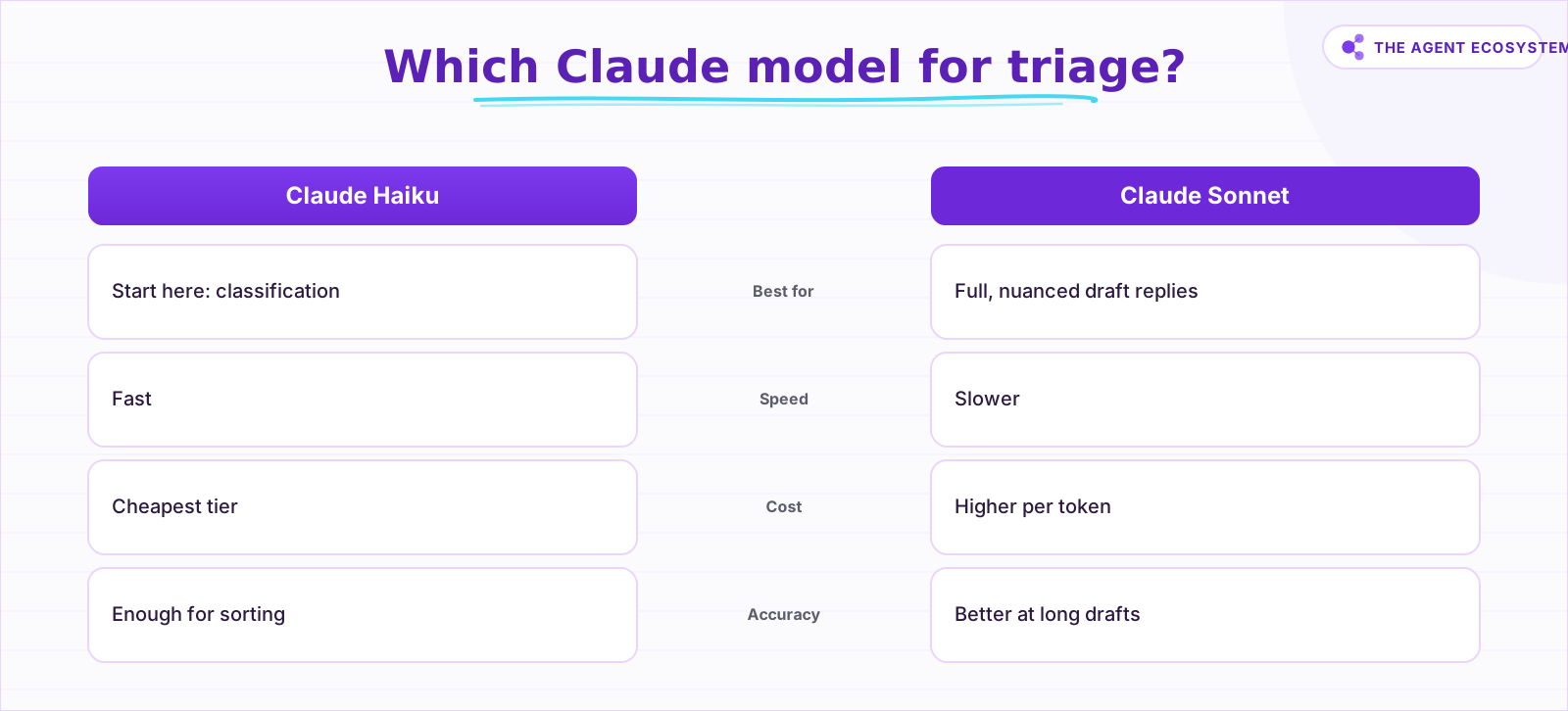 Start on Haiku; move to Sonnet only if you need richer draft replies.
How to Extend the Triage Agent#
Once the base workflow runs cleanly for a week, two extensions add real leverage without much effort. The first turns every Urgent email into a task in Notion or Todoist automatically. The second sends you a weekly Claude-written digest of everything labelled Noise, so nothing important hides in the low-priority pile.
Auto-create tasks from Urgent emails. Add a branch after the Switch node that, for Urgent emails, creates a task in Notion or Todoist via their n8n nodes. The task title is the email subject; the description is Claude's draft_reply. I added this in 20 minutes and it removed one of my last manual steps.
Weekly digest of Noise emails. Once a week, query your Google Sheet for all rows where label = Noise, pass the list to Claude, and ask it to summarise in 5 bullets. Send that summary to yourself via Gmail. This catches any false positives before they become missed emails, a real concern for a one-person operation with no backup.
You can also swap Google Sheets for Supabase if you want SQL queries over your log data. The n8n Supabase node works identically to the Sheets node from a configuration standpoint.
Where to Go From Here#
Start with the seven-step workflow above, run it in test mode against 15 real emails, and count your mislabels. Refine the system prompt once, then activate it. Most solopreneurs reach a stable, trustworthy workflow within three to five days, at which point the agent is quietly clearing your inbox every morning.
From there, the task-creation extension is an easy afternoon project that pulls another 30 to 45 minutes a day out of your manual queue. The full n8n HTTP Request documentation is worth a read first; it covers credential storage in detail.
Once the workflow is stable, you can also hand it to Claude as a tool: the MCP servers guide for solopreneurs shows how n8n's MCP Server Trigger turns this exact triage workflow into something you invoke from a chat window. For the full server build, see turn n8n into an MCP server.
Frequently asked questions
How much does it cost to run a Claude email triage agent daily?
Do I need coding skills to build this in n8n?
Which Claude model should I use for email triage?
Can this workflow work with email providers other than Gmail?
How do I stop Claude from mislabeling important emails as noise?
Is my email content sent to Anthropic when I use the API?
Sources
Primary references and vendor documentation used while drafting and reviewing this article.
Written by

Muhammad Qasim Hammad is an AI agent and automation expert and the founder of Cart Gaze LLC (cartgaze.com). He builds product for the love of it: when an idea lands, a working prototype is usually running within hours, built with the same AI agents and automations he sells. He puts his own output at roughly 20× what it was before agents, and the Agentic OS behind this site is the working proof, documented in public with the tools he actually ran and what they really cost.
AI & Automation Services
Want a pipeline like this running in your business?
I'm Qasim — I design and ship AI agents and n8n automations for solo operators and small teams. Tell me what's eating your team's week, and I'll scope a fix.
Related reading
How to Build an AI Agent: The 80% That Survives Week Two
Most tutorials get you a working agent in ten minutes and skip what breaks it in week two. Sixteen lessons covering the loop, tool descriptions, memory, fallbacks, guardrails, evaluation, and the cost levers that decide your bill.

OCR Turns a Page Into Text. A VLM Just Reads It.
OCR-then-parse converts a page to text outside the model, so a language model only ever sees what the OCR engine decided to keep. A vision-language model reads the page itself, pixels and text together, which is why it can answer a question about a specific box on the page while
How to Build an n8n AI Agent for Legal Intake and Document Triage
Before an attorney can act on a new inquiry, someone has to sort it by practice area, check for a conflict of interest, and gather the basic facts a first call will need. Here is how to build an n8n AI agent for that intake step, one that never crosses into legal judgment, case
How to Build an n8n AI Agent for Restaurant Reservations and Reviews
A reservation request at 9 PM with an allergy note can sit unanswered until morning, and the allergy note itself is exactly the detail that cannot get lost. Here is how to build an n8n AI agent that confirms bookings against real availability, flags every allergy verbatim, and
How to Build an n8n AI Agent for Bookkeeping Categorization
Pulling a vendor and a total off an invoice is the easy half of bookkeeping automation. Deciding which category it belongs to and catching the duplicate that already got entered last month is the harder half. Here is how to build an n8n AI agent for that step, one that flags
How to Build an n8n AI Agent for Property Management Maintenance Triage
An n8n AI agent can read a tenant's maintenance request the moment it arrives, sort it by real urgency and category, and route it to the right vendor before a property manager opens it. Here is how to build the triage logic, why certain safety issues must always bypass it