How to Back Up and Version Your n8n Workflows With Git
The free CLI-to-Git method, the encryption key nobody mentions, and what never to commit
AI-drafted, reviewed by Muhammad Qasim Hammad on June 11, 2026. See our AI disclosure.
Table of contents
- Does n8n have built-in version control?
- What actually needs backing up?
- How do you export your workflows to JSON?
- How do you put the backups in Git and automate them?
- How do you restore from a backup?
- What is the encryption key and why does it matter?
- What must you never commit to Git?
- What does the full setup look like?
- Where to go from here
Your n8n workflows live as rows in one database file on one server. One bad update, a fat-fingered delete, or a dead disk and months of automation vanish with no undo. A proper n8n backup exports every workflow to version-controlled JSON, so any workflow is one Git command away from restored.
I found this out the hard way. I run n8n self-hosted on a $5/month VPS (the full setup is in this self-hosting guide), and one botched dependency upgrade corrupted my database. I had no backup. I spent four hours rebuilding three workflows from memory. That was the last time I skipped this step.
Does n8n have built-in version control?#
n8n's native Source Control feature connects directly to a Git repository, but it is an Enterprise-tier feature. Community Edition, the free self-hosted version, does not include it. Community Edition users version workflows manually: export to JSON and commit that JSON to a private repo.
That is not a workaround. It is genuinely how most solo operators run this. The Enterprise Source Control adds branch-based environment management, which is useful with a staging and production environment. For a one-person operation on one server, the CLI export path gives you the same restore capability at zero extra cost.
The n8n Source Control documentation confirms this: Source Control is listed under Enterprise features.
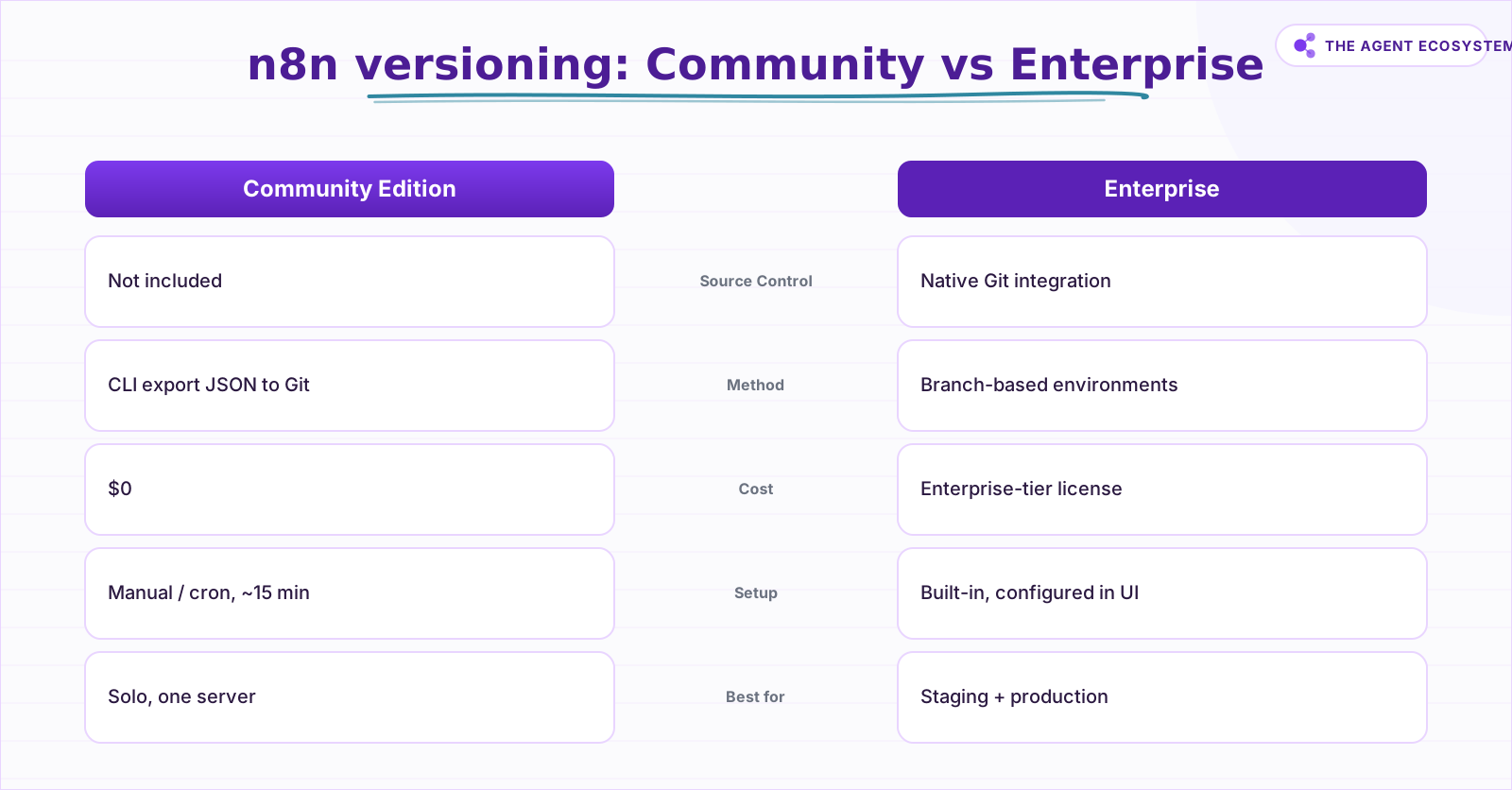 Enterprise adds branch-based environments; Community uses free CLI export to Git.
What actually needs backing up?#
Three things need backing up, and they must live in separate locations. Workflows are JSON files, safe to commit to Git. Credentials are encrypted blobs that belong in a separate, offline store. The encryption key is a single string that must live in a password manager or secrets vault, never in the same Git repo as your workflows.
The table below maps each asset to its export command, destination, and whether it is safe to commit.
| What to back up | Command | Where it goes | Safe to commit? |
|---|---|---|---|
| Workflows | n8n export:workflow --backup --output=./backups/ | Private Git repo | Yes |
| Credentials | n8n export:credentials --backup --output=./cred-backups/ | Encrypted, separate store | No |
| Encryption key | Copy ~/.n8n/config | Password manager or secret store | No |
| Full database | DB dump (e.g. sqlite3 database.sqlite .dump) | Object storage (e.g. S3, Backblaze) | No |
The workflows worth protecting most, like the Claude email triage agent built in n8n, are often the hardest to rebuild. A daily JSON export costs nothing and takes two minutes to set up.
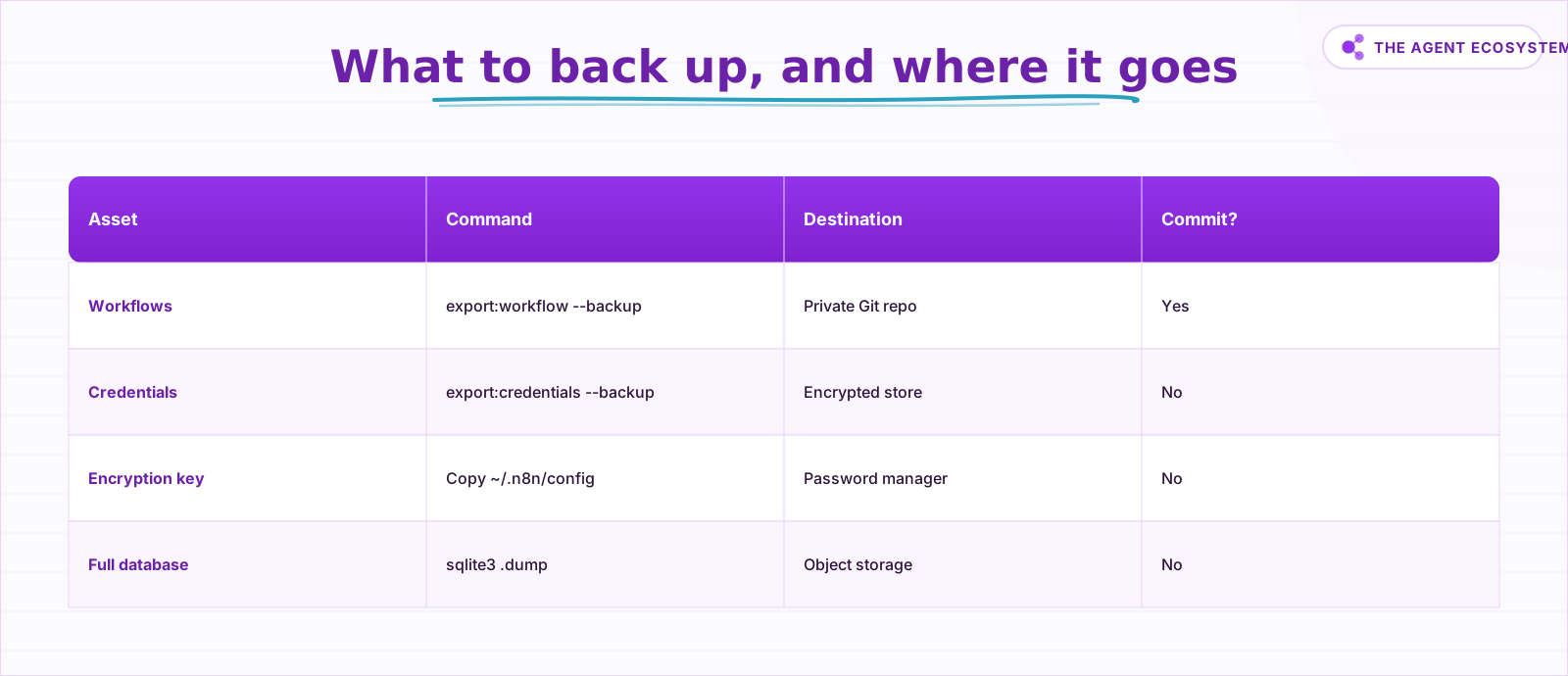 Three things, three separate locations: only workflow JSON is safe to commit.
How do you export your workflows to JSON?#
One CLI command exports everything. Run n8n export:workflow --backup --output=./backups/ on your server and n8n writes each workflow to its own readable JSON file in that folder, ready to commit and diff. From there a restore is a single import away. Here is the command:
n8n export:workflow --backup --output=./backups/If you only need one workflow by ID, use:
n8n export:workflow --id=<WORKFLOW_ID> --output=./my-workflow.jsonTo export everything into one combined file:
n8n export:workflow --all --output=workflows.jsonFor Docker installs, prefix with docker exec:
docker exec -u node <your-container-name> n8n export:workflow --backup --output=./backups/The <your-container-name> is whatever you named your n8n container in your docker-compose.yml. After the export, your backups/ folder has one .json file per workflow, each named by workflow ID.
The n8n CLI commands documentation lists every flag in full.
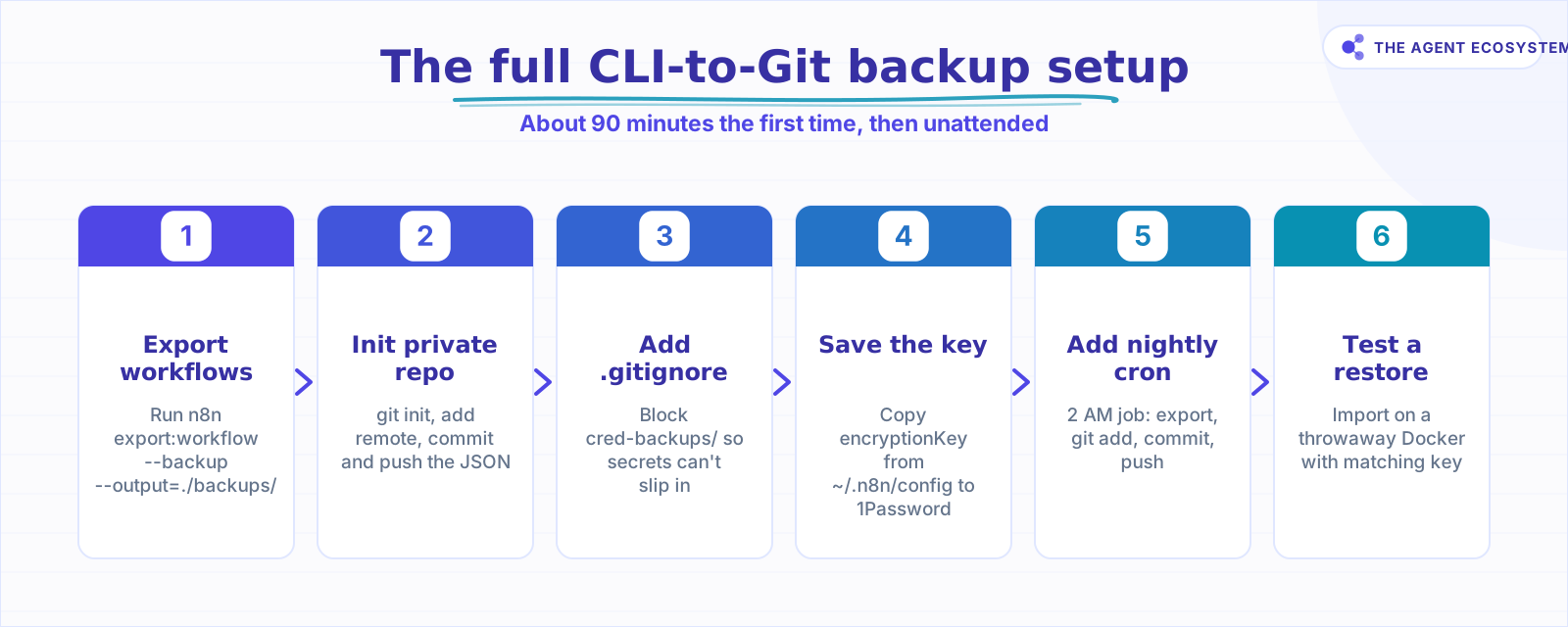 Each step is quick; the cron then runs itself every night.
How do you put the backups in Git and automate them?#
Initialize a private Git repo in the same directory as your backups/ folder, commit the JSON files, and add a cron job that runs the export and pushes a fresh commit every night. The whole setup takes about 15 minutes, then runs itself unattended.
First, initialize the repo and push the initial backup:
git init
git remote add origin <your-private-repo-url>
git add backups/
git commit -m "initial n8n workflow backup"
git push origin main
Then add a .gitignore at the repo root so credential exports can never slip in by accident:
cred-backups/
*.decrypted.json
Finally, open your crontab:
crontab -eAdd a nightly job (runs at 2 AM server time):
0 2 * * * cd /path/to/your/repo && n8n export:workflow --backup --output=./backups/ && git add backups/ && git commit -m "nightly backup $(date +\%Y-\%m-\%d)" && git push origin mainAlternatively, the n8n REST API exposes GET /api/v1/workflows, which returns workflow JSON. You can build a scheduled n8n workflow that calls this endpoint and writes the output to a file store, with no shell access needed. I use the cron method on my VPS because it is one fewer workflow to break, but both paths work.
For a broader picture of how this fits into a lean solo automation stack, the AI automation stack for solopreneurs guide covers the full picture.
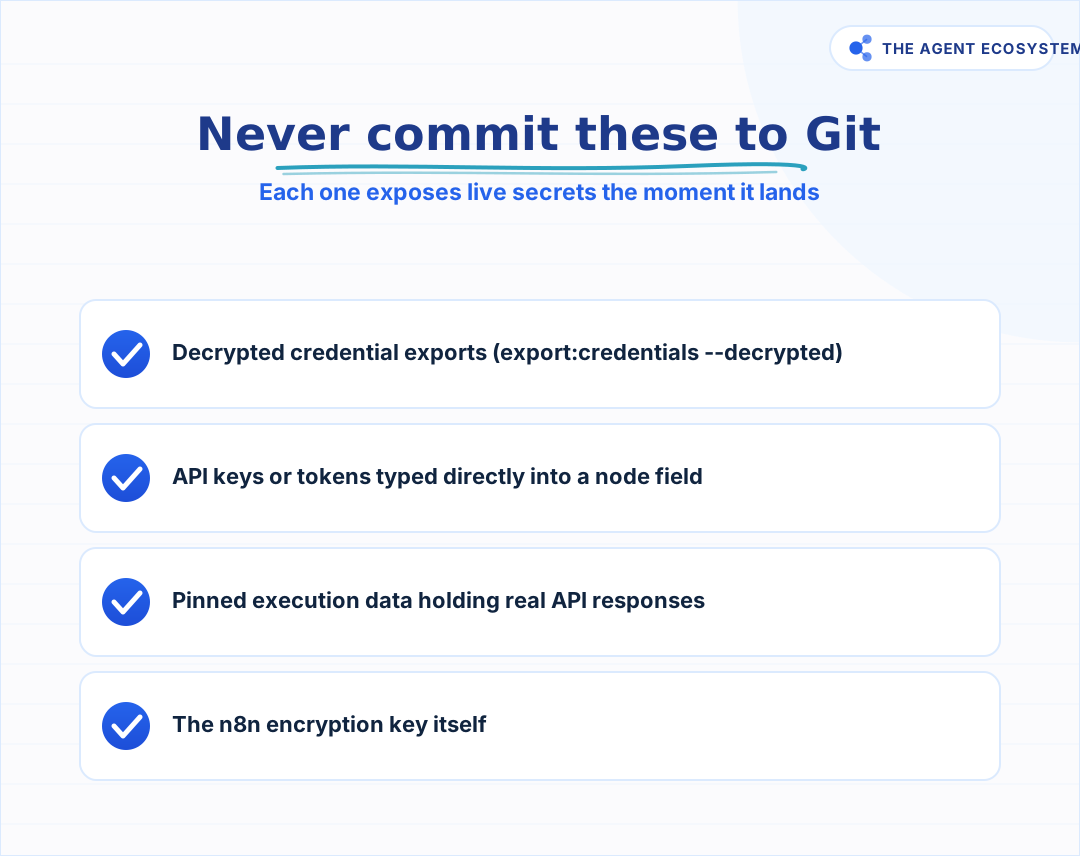 One accidental commit of any of these exposes live secrets.
How do you restore from a backup?#
Restoring is the export in reverse, plus one critical dependency. Point n8n import:workflow --separate at your backups directory and every workflow comes back. But the workflows reference credentials that only decrypt if the encryption key on this instance matches the one from the original. Get the key right and the import is one command:
n8n import:workflow --separate --input=./backups/Add --activeState=fromJson to preserve each workflow's active or inactive flag exactly as it was at export time:
n8n import:workflow --separate --input=./backups/ --activeState=fromJsonTo import a single file:
n8n import:workflow --input=./backups/my-workflow.jsonThe import recreates the workflow structure, including credential bindings by ID or name. But the actual credential values live in the encrypted credentials store, which only works if your encryption key matches.
After the import, open n8n in the browser, go to Credentials, and verify each credential is still connected. If a credential shows an error, the encryption key on the new instance almost certainly does not match. Set N8N_ENCRYPTION_KEY in your environment to the saved value and restart n8n.
What is the encryption key and why does it matter?#
The encryption key is the piece of your backup puzzle that most guides skip, and the one that silently breaks restores. Lose it and your credential exports become unreadable ciphertext. Every credential n8n saves is encrypted with this key, and no key means no decryption, no matter how complete your JSON backup is.
n8n stores the key in ~/.n8n/config on a standard install, or /home/node/.n8n inside the official Docker image. The n8n environment variables documentation shows how to set it explicitly with N8N_ENCRYPTION_KEY.
Setting N8N_ENCRYPTION_KEY as an explicit environment variable in your docker-compose.yml or .env file is the safest approach. The value survives container rebuilds and is not tied to a specific file path.
What must you never commit to Git?#
Workflow JSON is safe to commit because it stores credential references, not secrets. Three things are not safe and must never reach the repo: decrypted credential exports, secrets you typed directly into a node field, and the encryption key itself. Each one exposes live credentials the moment it lands in Git history.
First: the output of n8n export:credentials --all --decrypted. That flag writes every credential value in plain text. If that file reaches a Git repo, your secrets are exposed. The n8n CLI documentation lists this flag; use it only for an offline, encrypted backup, never for Git.
Second: any API key, token, or secret typed directly into a node field. An API key pasted into an HTTP Request node's Headers section lands verbatim in the exported JSON. The same applies to pinned execution data, which can include full API responses with sensitive values. Audit every node before committing.
Third: the encryption key itself. It does not belong in the same repo as your workflow JSON.
What does the full setup look like?#
Here is the exact sequence I run on my VPS, start to finish. The whole process, including a test restore on a local Docker container, took about 90 minutes the first time to get right, and zero minutes every night after that once the cron was live.
- Run
n8n export:workflow --backup --output=./backups/to confirm it works. - Create a private GitHub or Gitea repo, add the remote, and push the initial commit.
- Add
cred-backups/to.gitignorein the same repo. - Copy the encryption key from
~/.n8n/configinto a password manager entry. - Set
N8N_ENCRYPTION_KEYas an explicit env var so it survives any future rebuild. - Add the nightly cron to export, commit, and push.
- Test a restore on a throwaway Docker container with the matching encryption key before you need it for real.
The n8n workflows that save time for solopreneurs guide is a good reference for which workflows are worth the most to protect.
Where to go from here#
Set up the export and cron job today, before you need them. Then test the restore at least once on a clean instance so you know the encryption key is correct and the import runs clean. A backup you have never tested is a guess, not a safety net.
Frequently asked questions
Does n8n back up workflows automatically?
Is it safe to commit n8n workflow JSON to GitHub?
Where is the n8n encryption key stored?
Can I back up n8n without command-line access?
How do I restore an n8n workflow from a backup?
Is n8n Source Control (Git integration) free?
Sources
Primary references and vendor documentation used while drafting and reviewing this article.
Written by

Muhammad Qasim Hammad is an AI agent and automation expert and the founder of Cart Gaze LLC (cartgaze.com). He builds product for the love of it: when an idea lands, a working prototype is usually running within hours, built with the same AI agents and automations he sells. He puts his own output at roughly 20× what it was before agents, and the Agentic OS behind this site is the working proof, documented in public with the tools he actually ran and what they really cost.
AI & Automation Services
Want a pipeline like this running in your business?
I'm Qasim — I design and ship AI agents and n8n automations for solo operators and small teams. Tell me what's eating your team's week, and I'll scope a fix.
Related reading
How to Self-Host n8n on a VPS in 2026 (Full Setup Guide)
Self-hosting n8n on a VPS gives solopreneurs unlimited workflows, full data ownership, and a monthly bill under $10. This guide walks you through the exact 7-step setup.

How to Manage n8n Workflows Programmatically With the REST API
Once you are running more than a handful of n8n workflows, clicking through the editor stops being a reliable way to know what state everything is actually in. Here is how to use n8n's own REST API to monitor executions, catch a silently failing workflow, and deploy a change
n8n Environments: Dev, Staging, and Production Without Chaos
Testing a workflow change against the same instance that runs your live automations is one bad expression away from a broken production run. Here is how to set up separate dev, staging, and production n8n instances, parameterize what differs between them, and promote a change
How to Make Your n8n Workflows Reliable: Error Handling, Retries, and Alerts
n8n does zero error handling by default. Learn to add three layers: node retries, inline error outputs, and one Error Workflow that alerts you whenever any workflow fails silently.
n8n Error Workflow Template: A Copy-Paste Error Handler
An n8n error workflow template is one reusable flow, built on the Error Trigger node, that you set as your Error workflow so every failure is captured, formatted, and alerted from one place. Here is how to build it, wire it, and set it as your handler.
5 n8n Workflows That Can Save You ~12 Hours a Week
Five n8n workflows that replace source scanning, topic sorting, first-draft writing, pin prep, and changelog monitoring with a review-gated queue. Nothing autopublishes. You stay in control.