n8n Schedule Trigger: Cron, Intervals, and Overlaps
The honest guide to cron fields, timezone resolution, and the real fix for overlapping runs.
AI-drafted, reviewed by Muhammad Qasim Hammad on July 13, 2026. See our AI disclosure.
Table of contents
You built a workflow to fire every morning, and it either ran an hour off, stacked runs on top of each other, or silently never went. All three are scheduling problems, and all three have precise fixes once you know where n8n actually looks. The n8n schedule trigger is the node that starts a workflow on a fixed cadence, and getting cron, timezone, and overlap right is what separates a job that fires from one that quietly rots.
What is the n8n Schedule Trigger (and why not the old Cron node)?#
The n8n schedule trigger is the node that starts a workflow on a fixed cadence: every N minutes, daily at a set time, or on a full cron expression. It replaces the legacy Cron node, deprecated since n8n 1.0, with the same scheduling power and a cleaner interface. New workflows should always use it.
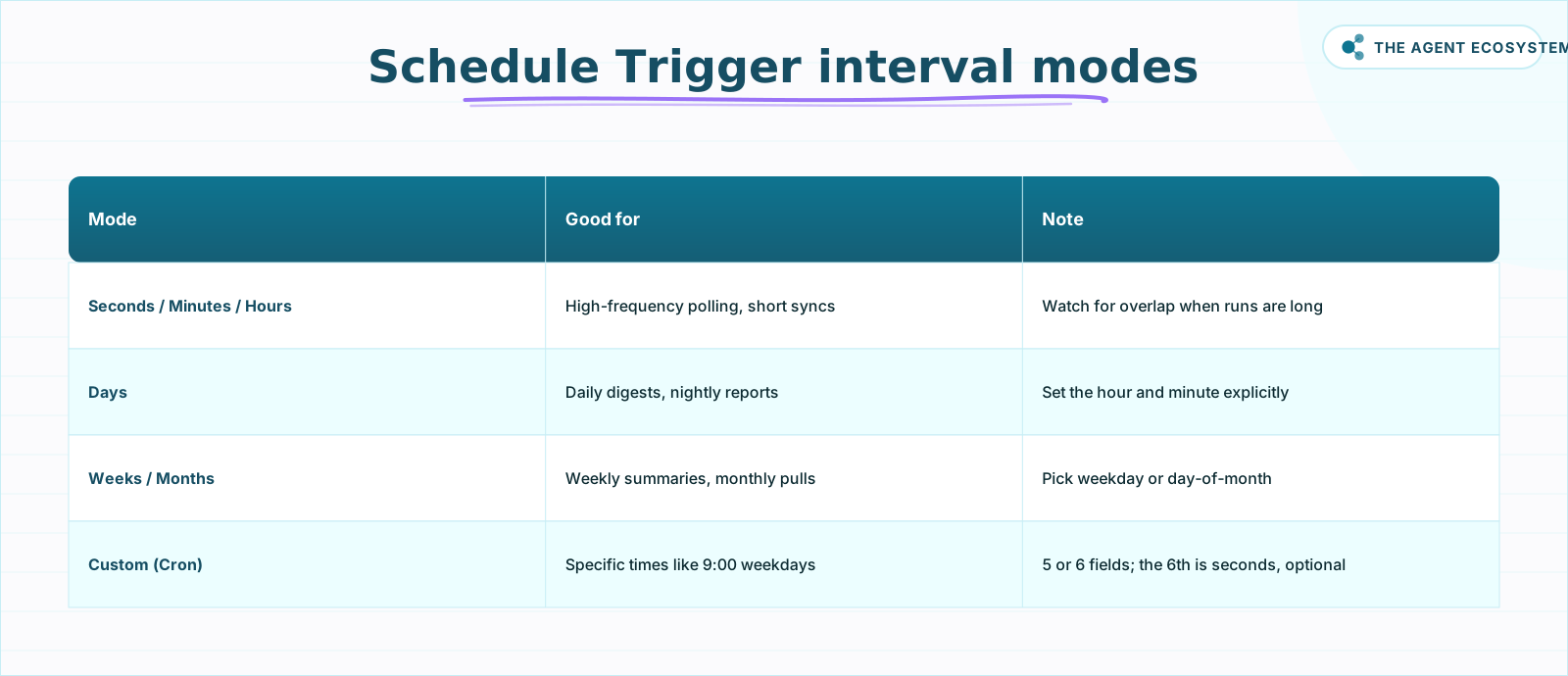 Use a plain interval for simple cadences; reach for Custom (Cron) only when you need specific minutes or days. As of June 2026.
You get seven interval modes: Seconds, Minutes, Hours, Days, Weeks, Months, and Custom (Cron). According to the n8n Schedule Trigger docs, the node works like the Unix cron utility under the hood, but for most jobs you never need to touch cron. A plain interval covers daily digests, nightly reports, and polling loops. Reach for Custom (Cron) only when you need a specific minute, hour, or weekday target that the simple modes cannot express. If you are still deciding whether a schedule is even the right trigger, our roundup of n8n workflows that save a solopreneur real time shows where scheduled jobs pay off.
Why does the deprecation matter in practice? The old Cron node still appears in tutorials and imported templates, so you will run into it, but building new work on a deprecated node means you inherit its quirks and no future fixes. The Schedule Trigger is the supported path, and it exposes every mode the Cron node did plus the cleaner interval builder, so there is no capability you give up by switching. When you open an old workflow that still uses the Cron node, treat swapping it for a Schedule Trigger as a small piece of maintenance rather than a rewrite. The two express the same schedules; only the node changes.
How do you write the cron expression and get the timezone right?#
n8n cron uses 5 or 6 fields. With five fields the order is minute, hour, day-of-month, month, day-of-week. The sixth field is seconds, it is optional, and when present it leads the expression. So 0 9 * * 1-5 means 9:00 every Monday to Friday, and you can validate that five-field part on crontab guru.
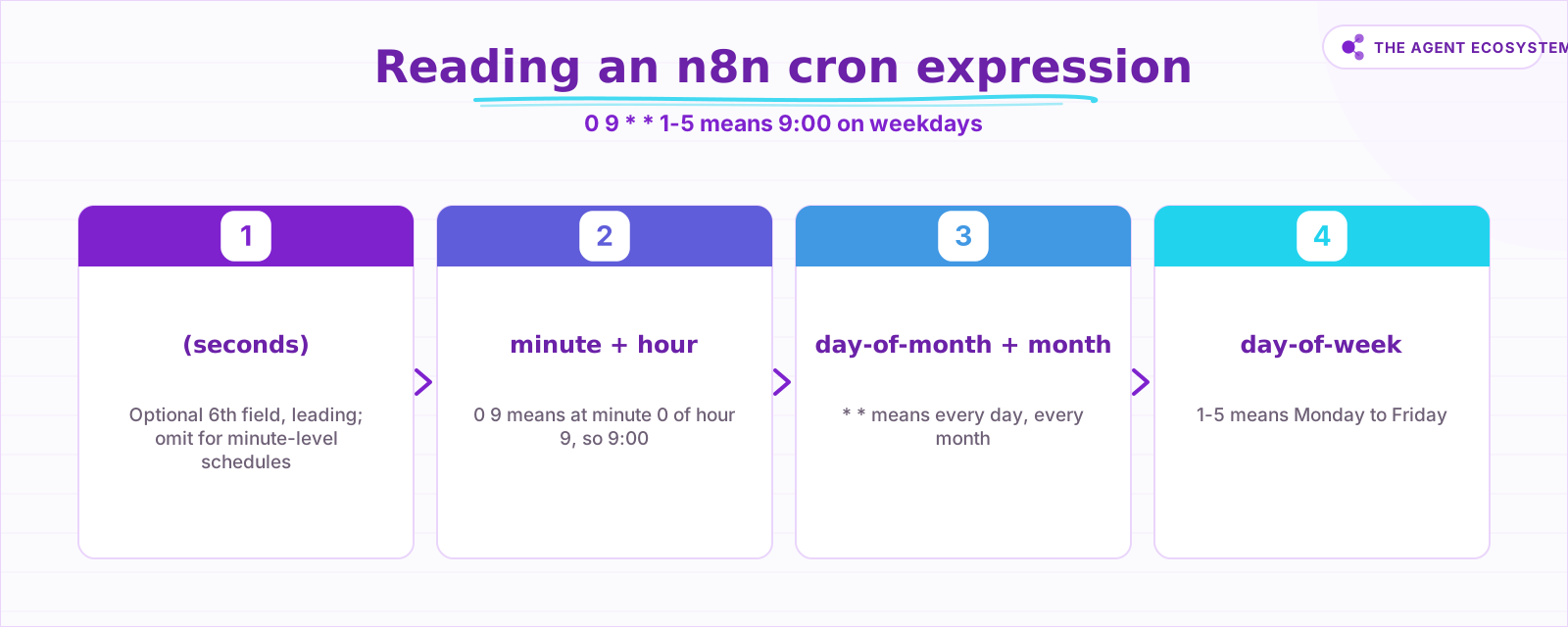 n8n cron is 5 or 6 fields; when you use 6, seconds is the leading field. Validate the 5-field form on crontab guru.
The seconds column trips people up because it sits in front, not behind. The docs are explicit that the sixth asterisk represents seconds and that setting it is optional, so if you only care about minute-level precision, stick to the traditional five fields and skip it entirely. Crontab guru will happily parse the five-field form, but it does not know about n8n's leading seconds column, so never paste a six-field expression into it and expect a match.
Timezone is the other half, and it resolves in a fixed order: the workflow's own timezone if you set one, otherwise the instance timezone. Per the n8n docs, a self-hosted instance defaults to America/New_York and is configured with the GENERIC_TIMEZONE environment variable, while n8n Cloud tries to detect the owner's timezone at signup and falls back to GMT. The value must be IANA format. America/New_York works; EST does not, because abbreviations are ambiguous and not reliably parsed. That single mismatch is the most common "ran an hour early" cause in the whole system.
There is a subtler trap in that resolution order. If you never set a workflow timezone, the job silently rides on the instance default, and on a fresh self-hosted install that default is New York time regardless of where you or your server actually are. So a workflow that looks like it should fire at 9:00 your time can fire at 9:00 New York time instead, which reads as a random offset until you notice the fallback. The fix is to set the timezone explicitly on any workflow whose timing matters, rather than trusting whatever the instance happens to default to. Daylight saving adds one more wrinkle: because an IANA zone like America/New_York carries its own DST rules, a job pinned to 9:00 local will follow the clock change automatically, whereas a fixed UTC offset would drift by an hour twice a year. That is another reason to use the named zone and not an offset.
How do you stop overlapping and missed runs?#
Overlap is simple to state: if a workflow takes 10 minutes and you schedule it every 5, runs pile on top of each other, because n8n does not hold a new trigger while the last run is still going. Missed runs are the mirror image: if n8n is down at the scheduled moment, that run is skipped with no catch-up.
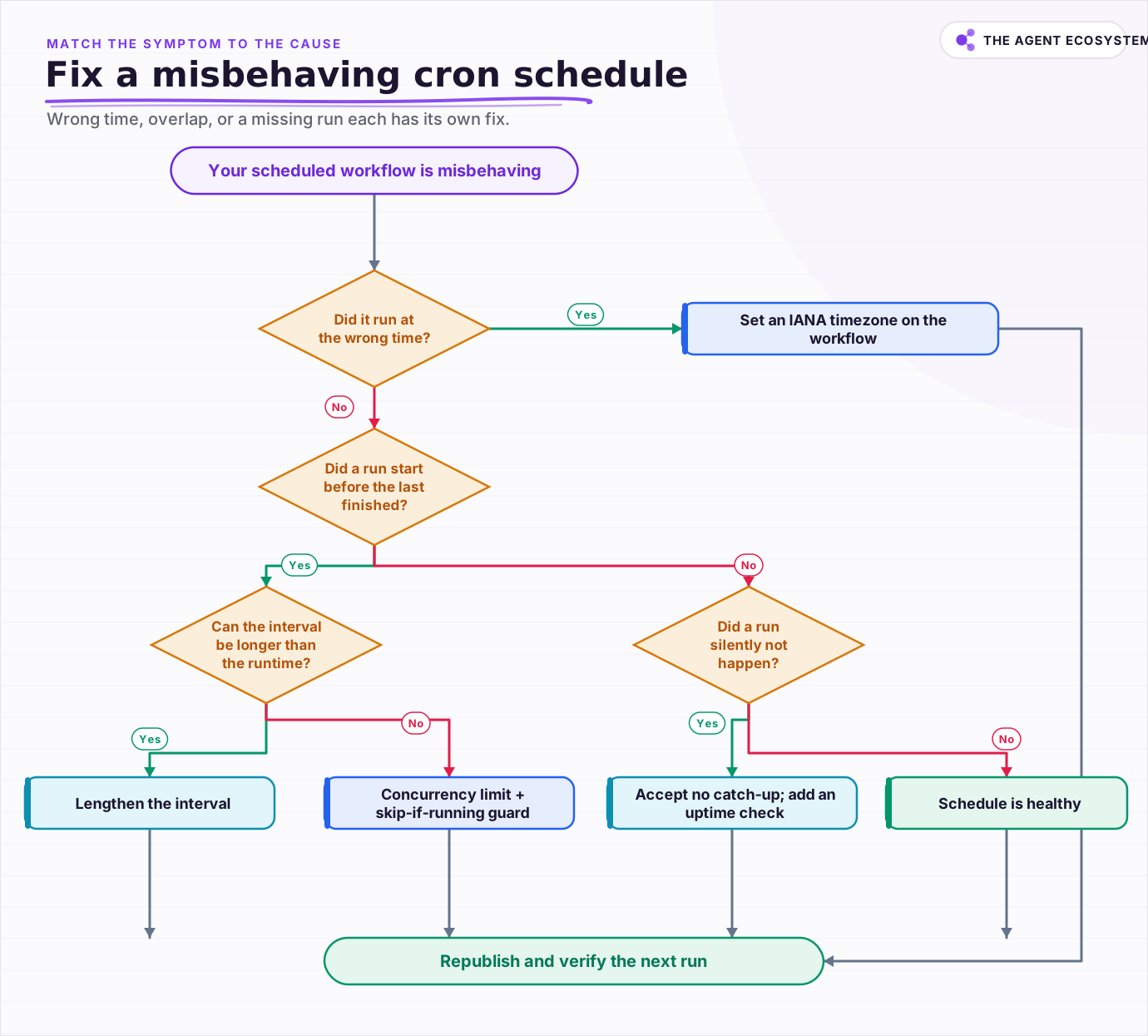 Start from the symptom: wrong time is timezone, overlap is interval or concurrency, a missing run has no catch-up.
The first fix is the boring one, and often the right one: make the interval safely longer than the job's worst-case runtime. If a sync takes at most 6 minutes, a 15-minute schedule has headroom and nothing ever collides. That only works when the job is short and predictable, though, so it is a fit for tidy jobs, not a universal answer.
The real fix for long jobs is concurrency control. The N8N_CONCURRENCY_PRODUCTION_LIMIT variable caps how many production executions run at once, and excess runs queue in FIFO order until capacity frees. The n8n concurrency docs note the default is -1 (off), the limit is per instance in regular mode and per worker in queue mode, and one caveat bites hard: it applies to webhook and trigger runs only, so manual, sub-workflow, error, and CLI executions are never queued. Queued executions also cannot be retried.
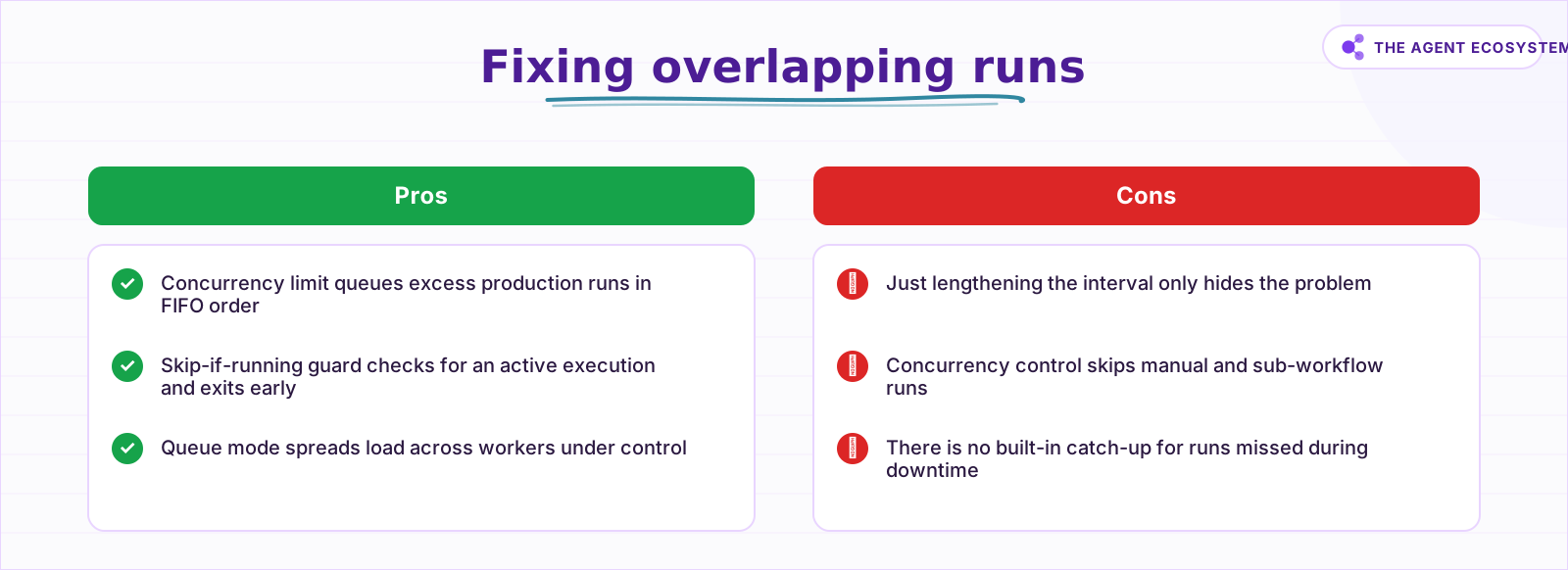 A longer interval is a band-aid; a concurrency limit plus a skip-if-running guard is the real fix.
The third option is a "skip if still running" guard built into the workflow itself. Early in the run, query the executions for an already-active instance of this workflow and exit if one exists. That makes the job self-skipping no matter how the interval drifts, and it is a documented community pattern rather than a single toggle, so treat it as a small subworkflow you assemble, not a checkbox. For missed runs there is no backfill at all, so for jobs where a skipped run actually costs you, add an external heartbeat or dead-man's-switch that pings you when an expected run does not land.
On n8n Cloud the concurrency ceiling is set by your plan rather than an env variable, and executions past that limit queue in FIFO order. Third-party 2026 summaries put Starter around 5 concurrent executions and Pro around 20, but the official numbers live on the pricing page, so confirm them there before you design around a figure. If reliability is your real goal, pair this with proper n8n error handling for reliable workflows.
A practical scheduling recipe you can copy#
Match the mode to the job and you rarely touch cron at all. A daily digest wants Days mode; a business-hours poll wants a tight cron window; a long overnight sync wants comfortable spacing plus a concurrency guard. Below are three recipes and one habit that together cover most real scheduling needs, all verified against current n8n behavior.
For a daily digest at 7:00 local, use Schedule Trigger in Days mode, set hour 7 and minute 0, and set the workflow timezone to your IANA zone. No cron expression is needed. For a weekday business-hours poll, switch to Custom (Cron) and use */15 9-17 * * 1-5, which fires every 15 minutes between 9:00 and 17:00, Monday to Friday. For a long nightly sync that sometimes overruns, schedule it with generous spacing, set a concurrency limit so a stuck run cannot double up, and add the skip-if-running guard as a belt-and-braces layer.
| Job | Mode | Setting | Overlap guard |
|---|---|---|---|
| Daily digest, 7:00 local | Days | Hour 7, minute 0, IANA timezone | Not needed |
| Weekday business poll | Custom (Cron) | */15 9-17 * * 1-5 | Interval > runtime |
| Long nightly sync | Days or Cron | Comfortable spacing | Concurrency limit + skip guard |
The habit that ties it together: always confirm the next scheduled run after you publish, and republish whenever you change the interval or any variable the trigger reads, since neither takes effect until then.
What should you double-check before you rely on a schedule?#
Before a scheduled workflow carries anything you care about, verify four things: the timezone is IANA and set at the right level, the interval clears the job's worst-case runtime or has an overlap guard, you republished after your last edit, and the workflow is active. Miss one and the job quietly fails.
Those four checks catch nearly every "why didn't it run" case, because scheduling failures are rarely exotic. They are a wrong-time timezone, an overlap n8n never promised to prevent, a missed run with no catch-up, or an edit that never got republished. Wire the schedule deliberately, add a concurrency limit and a skip guard for anything long, and lean on an external heartbeat for runs that genuinely cannot be skipped. Do that and the trigger becomes the dependable part of your automation instead of the flaky one.
Frequently asked questions
Why is my scheduled n8n workflow running at the wrong time?
How do I stop overlapping runs when a job takes longer than its interval?
Does n8n catch up on runs it missed while it was down?
Why didn't my interval change take effect?
Where does the seconds field go in an n8n cron expression?
Sources
Primary references and vendor documentation used while drafting and reviewing this article.
- n8n Schedule Trigger docs (interval modes, cron 5/6 fields with optional leading seconds, timezone resolution and defaults)
- n8n Schedule Trigger common issues (wrong-time timezone, overlap when runtime exceeds interval, missed runs with no catch-up, republish to apply)
- n8n concurrency control (N8N_CONCURRENCY_PRODUCTION_LIMIT, default off, FIFO queue, production-only scope, regular vs queue mode)
- n8n Cloud concurrency (per-plan concurrent execution limits and FIFO queuing of excess)
- n8n pricing (authoritative per-plan concurrent-execution numbers)
Written by

Muhammad Qasim Hammad is an AI agent and automation expert and the founder of Cart Gaze LLC (cartgaze.com). He builds product for the love of it: when an idea lands, a working prototype is usually running within hours, built with the same AI agents and automations he sells. He puts his own output at roughly 20× what it was before agents, and the Agentic OS behind this site is the working proof, documented in public with the tools he actually ran and what they really cost.
AI & Automation Services
Want a pipeline like this running in your business?
I'm Qasim — I design and ship AI agents and n8n automations for solo operators and small teams. Tell me what's eating your team's week, and I'll scope a fix.
Related reading
How to Make Your n8n Workflows Reliable: Error Handling, Retries, and Alerts
n8n does zero error handling by default. Learn to add three layers: node retries, inline error outputs, and one Error Workflow that alerts you whenever any workflow fails silently.

n8n Webhooks vs Polling: Which Trigger to Use, and Why
Should an n8n workflow fire the instant an event happens (a webhook, push) or check on a timer (polling, pull)? The wrong pick means missed events or wasted executions. Here is the decision framework plus how to wire each trigger.
n8n Error Workflow Template: A Copy-Paste Error Handler
An n8n error workflow template is one reusable flow, built on the Error Trigger node, that you set as your Error workflow so every failure is captured, formatted, and alerted from one place. Here is how to build it, wire it, and set it as your handler.
How to Manage n8n Workflows Programmatically With the REST API
Once you are running more than a handful of n8n workflows, clicking through the editor stops being a reliable way to know what state everything is actually in. Here is how to use n8n's own REST API to monitor executions, catch a silently failing workflow, and deploy a change
Keep n8n AI Workflows From Breaking: Retry, Fallback Models, and Error Branches
Your n8n AI workflow passed every test, then a 429 killed a whole overnight batch with no alert. This guide wires 3 defenses: Retry On Fail, a fallback model, and a global Error Workflow.
5 n8n Workflows That Can Save You ~12 Hours a Week
Five n8n workflows that replace source scanning, topic sorting, first-draft writing, pin prep, and changelog monitoring with a review-gated queue. Nothing autopublishes. You stay in control.